Tampilkan postingan dengan label the. Tampilkan semua postingan

Minggu, 01 Desember 2013

How to reset the ink cartridge Canon PG 37 black

How to reset the ink cartridge Canon PG-37 blackIf the black cartridge refills PG-37 where are you going to put on the printer you put a sign saying that the cartridge is empty or is not correct cartridge.

Esto no es por que no tenga tinta (ojo que tambien puede estar vacio) es que la impresora pixma no tienen un sensor para saber la cantidad de tinta que tiene, lo que hace es reconocer el cartucho que se te termino y avisarte que esta vacio al contar determinada cantidad de impresiones.

This is not because you do not have ink (note that also can be empty) is that the printer pixma not have a sensor to determine the amount of ink you have, what it does is recognize the cartridge that is over and warn you that this vacuum to have certain amount of impressions.

Para solucionar esto lo que hay que hacer es: To fix this you have to do is:

Cuando intentes imprimir y te sale el cartel de que no tiene tinta apreta durante 20 segundo el boton (depende el modelo de impresora cual boton, pude ser el de las hojas o uno que tiene dibujado un triangulo al reves) When you try to print and sign out the ink has not click the button for 20 seconds (depending on the printer model that button, I could be the leaves or one that has drawn a triangle upside down)

Cuando lo sueltes se borrara el nivel de tinta y podras imprimir tranquilamente. Be erased when you release the ink and you can print smoothly. Lo que de ahora en adelante no te va a decir nunca mas que cantidad de tinta tiene. What henceforth not going to say anymore that has ink. PERO PUEDES IMPRIMIR ! BUT YOU CAN PRINT!

Kamis, 28 November 2013

How to Resetting the maintenance count LaserJet 9000mfp 9000Lmfp

1. Turn the printer off.
2. Press and hold the 6 button, then press the power button to turn the MFP on.
3. When the three LEDs are on, release the 6 button.
4. "SELECT LANGUAGE" appears on the screen. Press and release the 3 button. "NEW MAINTENANCE KIT" appears on the screen.
5. Press and release the 6 button again.

Minggu, 24 November 2013

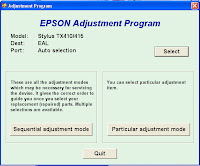
How to reset the protection counter of Epson Stylus TX410 and TX415 Resetter

 Epson Stylus TX410 and TX415 Adjustment Program

FIX PRINTER ERROR "parts inside printer end service life, waste ink pad counter overflow error"

Please follow the steps below to reset the protection counter effectively.
  1. Double click AdjProg.exe.
  2. Click “Accept” button.
  3. Click "Select" button. and choose your printer model then click "OK"
  4. Click “Particular adjustment mode” button.
  5. Select on “Waste ink pad counter” and click “OK” button.
  6. Click on “Initialization” button and the program will reset the protection counter.
  7. Turn off the printer as a program instructed then turn on again.
  8. Click “Finish” button. and its done!
Download Here!

Sabtu, 26 Oktober 2013

The Secret Resetter Code for Canon S900 S820 S750 S520


1. Turn off the printer.
2. Press and hold the RESUME button, then press and hold the POWER button.
3. While still holding the POWER button, Release the RESUME button, then press and release the RESUME button two more times in succession.
4. The printer mechanics will move momentarily. You are now in Service mode. Release the Power Button.
5. Pressing the RESUME key will select a function; for example, pressing RESUME 4 times will select the clear waste ink counter function. The lamp will alternate color with each key press.
(a). Service/factory test printout, including ink sensor check
(b). EEPRsaya info printout
(c). EEPRsaya initialization
(d). Clear the waste-ink counter
(e). Printer model setting. (more selections beyond this- leave this alone)
6. After selecting mode, press the POWER button to commit the change, and return to the top of the function selection menu. Pressing the POWER button again turns off the printer for a restart.

Senin, 21 Oktober 2013

The Sharp AL 1642CS Duplex All In One


OVERVIEW:  With twice the paper capacity of other AL-1600’s, the Sharp AL-1642CS also produces 2-sided copies and printouts.

PROS:
At 51 pounds, the all-in-one copier has a footprint 20.4” x 19.4”. The copier is a little large to put on a desk but will feel right at home on any credenza.

The AL-1642CS uses a stationary 8½” x 14” platen for scanning instead of a sliding platform to keep its footprint no bigger than its physical size.  The automatic document feeder allows for 30 single-sided copies to be made up to legal-size: more originals can be fed in as the level lowers. By scanning the original once and storing the image into its 8MB memory allows the AL-1642CS to produce copies at the rate of 16 pages per minute, up to 99 copies.

The AL-1642CS has three different exposure modes & resolutions (auto, manual, photo). Automatic (or default) resolution is 600 x 300 dpi. “Photo quality” is 600 x 600 dpi at 256 grayscale levels. The magnification can be changed from 25% to 400% in 1% increments or in 6 jumps.

One of the “gotchas” for 2-sided copying is the originals in the ADF must be single-sided. One option rather than burning through paper making the originals 1-sided is if the originals are in electronic form to use the printer capabilities of the AL-1642CS to print them from a computer as 2-sided duplicates.
Using either Parallel or the USB 1.1 connection, the AL-1642CS can be connected to a computer to double as a modest laser printer. In a small office, the Sharp can be set up to be a shared printer provided the computer it’s connected to remains on during the hours the printer would get used. When connected to a computer, the AL-1642CS can scan color images with resolutions up to 600 x 1,200 dpi.
The control panel for the AL-1600 series is pretty straightforward, so you don’t need to go to the manual to figure things out. In addition to magnification, quantity, and exposure, you can control which paper tray to use and to switch to the toner save mode. Indicators blink for toner and drum replacement, and paper jams. Unfortunately, the jam indicator does not show where inside the copier the misfeed is, so you’ll have to do the sleuthing yourself.
This Sharp has two sliding paper trays, each holding up to 250 sheets of either letter (8½” x 11”) or legal (8½” x 14”) size paper. The two-tray feature is especially nice in an office where legal and standard size papers are often used. Non-standard sizes from 3” x 5” up to 8½” x 14” can be placed singly on the scanning platform, or up to 50 sheets placed on the multi-purpose flip-tray on the side of the copier.

CONS:
Sharp’s does not offer PCL or PostScript print emulation. Instead, Sharp provides their own GDI print emulator. For most printing, users won’t notice any difference in performance and considering the low printing resolution of this all-in-one, it’s unlikely any high-end Adobe graphics will be put to this unit.
The design of the AL series is primarily based to focus on copier features. During its prime, a 16 ppm copy speed was impressive for a small copier. In printer mode, the touted 12 ppm speed can only be achieved at lowest resolution (but that’s the caveat for any printer specs). Don’t expect the faster print speeds of 20 ppm that’s typical of current monochrome laser printers.

INK / TONER NEEDS:
The AL-1642CS only comes with a 50-percent full toner cartridge, which will need replacing after 4 reams of paper.  The standard-yield toner can hold 4,000 pages at 5% coverage, the HYPERLINK "http://www.quikshiptoner.com/catalog/sharp-al-1642cs-toner.html"high-yield producing 6,000 pages.
The AL-1642CS has separate toner and drum to help reduce overall consumables costs. The front plate flips open, allowing for the toner, then the drum units to be accessed. Since the cartridges have to be slid out sideways, it will take a little bit of practice to get the hang of replacement.

The drum unit will need to be replaced every 18,000 pages, or on the 3rd toner change. During the course of changing toner, people often forget to keep track when it’s time to change the drum. Combo-packages are available that offer the drum with several toners. By the time the toners are consumed, the remaining drum is replaced. These combo-packages make maintenance easy and increases overall machine longevity and print quality.

Minggu, 06 Oktober 2013

Reset the Ink Level on a Lexmark Printer

Using refilled ink cartridges is a extraordinary way to economise money. Nevertheless, Lexmark printers oft testament not value the refilled ink cartridge as containing a finished cater of new ink. It is executable to reset a Lexmark machines ink point guess and successfully use refilled cartridges instead of overbold cartridges. Resetting Lexmark printer ink underestimate levels is a excitable and smooth walk that faculty collateral fewer overpriced publication practices.

Manual

Use The Machine Solvent Central Option

1. Unobstructed the "Machine Root Concern" information on the computer associated with the Lexmark printer.
2. Select the "Maintenance" tab in the "Machine Result Tract."
3. Superior the "Position a new machine cartridge" alternative.
4. Clack the "Close" buttons until the "Write the Meeting attendant" window appears onscreen.
5. Select the "Photo" fasten. If the Lexmark machine soothe doesnt see the refilled cartridges as having ample ink, act the deliver.


Resetting the Cartridge Alternative

1. Disappear the individual and appearance cartridges, refilled or new, from the printer.
2. Play the machine off using the state secure. Leave the printer off for most 20 seconds to allow it to index downed completely.
3. Transform the printer on using the noesis fix. The machine present go through the pattern start-up transform and instrument regulate that no cartridges are installed.
4. Echo Steps 3 and 4 quint present. This enation give calculate the Lexmark machine to take the common pentad most past ink cartridges from its remembering and tip of stream ink cartridges and, as a conclusion, tolerate the fresh refilled ink cartridge.

Minggu, 08 September 2013

The Samsung ML 3051ND Laser Printer


OVERVIEW:  Samsung offers a laser printer that is big enough to handle the demands of over 20 networked computers, but still be reasonably compact and priced. At the top of Samsung’s ML-3050 Series, the ML-3051ND is a monochrome laser with a built-in Ethernet network and duplex printing capability.

PROS:
The ML-3051ND’s compact design & footprint takes up only a 1.9 square foot area on a table, while able to still hold legal-size paper within its tray.

The “D” in ML-3051ND is for “duplexing”. Two-sided printing is an economic and environmentally friendly way to save on paper. This feature, along with the options to print pages either Long Edge or Short Edge, enables the printer to be used for desktop publishing of bound booklets, catalogs, and calendars.

The ML-3051ND prints fast--be it single-sided or 2-sided. It does take 44 seconds for the printer to warm up from a cold boot, but once it’s up this laser starts chugging letter-size prints at 30 pages per minute 1-side. Even printing on both sides of a page at 24 ppm, the ML-3051ND is as fast as many single-side laser printers.

At 1200 x 1200 dpi B&W resolution, the ML-3051ND keeps text sharp--even at 6-point font sizes--and does a decent job with graphics. To keep from consuming too much toner, the printer has a 600 dpi resolution with a text-enhance or image-enhance switch.  The Toner Save feature allows for a 40% toner life increase while keeping images clear and readable.

The ML-3051ND comes standard with a 250-sheet cassette tray, with an optional second 250-sheet stacking cassette. The flip-door reveals a 50-sheet multi-purpose tray that can handle transparencies, labels, post cards, envelopes, 3” x 5” postcards up to 8½” x 14” legal paper of various bond weights.

The control panel on the ML-3051ND has a multi-line LCD Display, plus several buttons that make manual control of the printer relatively intuitive, including a “duplex” button for on-the-fly double-sided printing. Through the control panel, printer information, configuration, emulation, and network settings can be done. Administrators can also perform these changes remotely with Samsung’s SyncThru web application.

The “N” in ML-3051ND is for “network is built in”.  The Ethernet 10/100 Base TX interface makes it ready to support networked computers in an office, department, or a classroom. You can choose between Parallel, USB, or Ethernet connectivity. So, no matter how old or new your computer is, the ML-3051ND can handle it.

This laser printer comes stock with 64MB of memory, allowing the ML-3051ND to easily handle workloads from multiple computer requests. An additional DIMM RAM slot is available to expand printer memory up to a whopping 320MB.

Understanding the printing needs of today’s businesses in providing support for the major software applications, Samsung has installed a full set for print emulators that should satisfy the most diverse office. Emulators include PostScript3, HP PCL6, IBM ProPrinter, and EPSON.

CONS:
If you’re used to the smaller ML laser printers, get ready to flex your biceps. At 33 pounds, the densely-packed ML-3051ND will need a study place to stay.

The printer produces 54dB of sound printing, idling at 39 dB. To give you an idea of what that means, 60 decibels is the level of typical conversations and 40 decibels is the level of whispering. You probably don’t want to have this network printer stationed in a conference room printing when a meeting is in progress. But when placed in the copy room or in the middle of a busy office floor, the noise is barely noticeable.

With more bells and whistles than other ML printers, warming up takes the ML-3051ND about 35 seconds -- 44 seconds if in Sleep mode. From Standby it takes 8.5 seconds between print jobs. Delays like this are unacceptable if the printer was for a single user, but in a network environment where it usually takes the user about 3 to 5 minutes to pick up their printout, the delay is hardly noticeable.

INK/TONER NEEDS:
The ML-3051ND’s toner and drum are integrated in a single cartridge, making it easy to maintain. Right out the box, the printer comes with the standard size toner, able to print up to 4,000 pages.  An 8,000 double-capacity toner option is also available to double the time between toner replacements.

SOFTWARE:
The ML-3051ND has one of the better software packages. Not only does it have the basic printing properties for Mac and Linux, but for Windows users there’s an advanced printing section that allows for booklet printing, creating a large poster mosaics, and watermarks.

The drivers also enable 64-bit and Microsoft Server operating systems to be able to use the ML-3051ND. This may be considered a no-brainer, but there are printers with software that absolutely will not install on Server 2003 & 2008.

To make network printer configurations and notifications easy, Samsung’s SyncThru Web Service allows printer changes to be made using your IE, Safari, or Firefox browser. The software is not part of the CD and has to be downloaded from Samsung’s web site.

Selasa, 06 Agustus 2013

Benefits of the XPS Printer Driver

Benefits of the XPS Driver:

Improved color printing

High-fidelity print output

Faster printing of documents with rich graphics

Improved color printing

The operating system can communicate a broader range of color information from applications to inkjet printers that use more than four ink colors (known as wide-gamut printers).

The advanced color capabilities available in XPS make Windows Vista a great platform for printing photos with more lifelike output.

High-fidelity print output

The XPS print infrastructure enables high-fidelity output by reducing or eliminating image data conversions and color space conversions that typically occur during printing.

The benefit for users is that smooth shadings, fades, and glow effects used in modern documents print just as intended, without loss of image fidelity or color fidelity.

Faster printing of documents with rich graphics

With XPS-enabled enterprise class printers—available now from many printer manufacturers—the time spent waiting to finish printing a rich, color graphics document is dramatically reduced.

Consider a Microsoft PowerPoint presentation that has the same color background repeated across 30 slides.

Before XPS, that enterprise printer would render that same color image 30 times, creating a massive "spool" or print file (and a long wait for everyone else that needed the printer). These massive spool files were also a tax on network bandwidth.

With XPS, the color image is sent to and rendered by the printer once.

Rabu, 15 Mei 2013

Review of the Copystar CS 1820


Overview:

The Copystar CS-1820, a multifunctional printer, is equipped with print, scan, copy and the   capacity to fax. This printer is compact and potent meant for small offices that do not need a printer for mass printing needs.

Pros:

For a multifunctional printer the CS-1820 provides extraordinary speeds when it comes to output; for letter paper it prints at 18 ppm, and for legal paper it prints at 15 ppm. When it comes to the copy and printing speeds the same response is expected. When it comes to initial copy results it clocks in at 9.5 seconds or less. For initial print results it is even more remarkable as it clocks in at 8 seconds. When it comes to resolution the Copystar CS-1820 is exciting. It has a standard resolution of 600 x 600 dpi and 256 levels. When combined with Fast 1200 mode the resolution increases to 1800 x 600 dpi, and with KIR it reaches a resolution of 2400 x 600 dpi. These impressive resolutions are due to its customary 96MB of memory which when a 100 Pin DIMMS slot is integrated into it the memory increases to 320MB. When you perform the upgrade it allows the printer to handle the increased resolutions without issue along with other features and capabilities of the printer. To help produce jobs that need to be adapted via magnification this printer has an automatic magnification that is full size. It has the ability to zoom in 1% increments from 50% to 200%.

The Copystar CS-1820 has the ability to handle imaging for text and photo products; it accomplishes this using automated and manual exposure controls. This printer also comes equipped with an ECO function which saves on toner and power usage lowering production costs. The CS-1820 can copy uninterrupted up to 999 copies, and then can be reset automatically back to 1 copy. In addition it comes with other options for copying including; paper select, copy priority, 8 job plans, electronic sorting and a job cache.

This printer uses an implanted controller that has a PowerPC 750 processor with a whopping 300MHz, and the RAM is shared by all the various functions. Network capable it will support the following protocols; TCP/IP, AppleTalk, and NETBEUI. When scanning in color you can choose resolutions from 200 to 600 dpi in increments of 100 dpi with the exception of 500 dpi. Scan production speeds are reasonable with monochrome speeds of 18 ppm and color speeds of 5 ppm. Fax capabilities are optional to include network faxing. Fax capabilities come with a G3 modem working at a speed of 33 Kbps. When transmitting it takes about 3 seconds per page, and the quick scan ability works in less than 2.5 seconds.

Equipped with a 50 sheet multipurpose tray for media and a standard 250 sheet paper tray; the CS-1820 can come with an additional 250 sheet paper tray option. Also included is a document feeder for 50 sheets of paper that feeds automatically for up to 18 genuine papers per minute and processes paper with a weight of 13 to 32 lbs.

Cons:
With limited capabilities when it comes to volume, the condensed size of the Copystar CS-1820 may hinder it. If an office requires a multifunctional printer that can process high levels of output then it is not nearly big enough as it only measures 19.5 x 16.6 x 17.9 inches.