The configuration page for a Dell 5330dn laser printer includes a lot of information, including page count, IP address and network settings, amount of toner remaining, and fuser page count. To print the configuration page:
- Press the Menu button
- Scroll down to Reports
- Press the check mark button
- Scroll down to Configuration
- Press the check mark button
Tampilkan postingan dengan label laser. Tampilkan semua postingan
Tampilkan postingan dengan label laser. Tampilkan semua postingan
Senin, 09 September 2013
Minggu, 08 September 2013
The Samsung ML 3051ND Laser Printer

PROS:
The ML-3051ND’s compact design & footprint takes up only a 1.9 square foot area on a table, while able to still hold legal-size paper within its tray.
The “D” in ML-3051ND is for “duplexing”. Two-sided printing is an economic and environmentally friendly way to save on paper. This feature, along with the options to print pages either Long Edge or Short Edge, enables the printer to be used for desktop publishing of bound booklets, catalogs, and calendars.
The ML-3051ND prints fast--be it single-sided or 2-sided. It does take 44 seconds for the printer to warm up from a cold boot, but once it’s up this laser starts chugging letter-size prints at 30 pages per minute 1-side. Even printing on both sides of a page at 24 ppm, the ML-3051ND is as fast as many single-side laser printers.
At 1200 x 1200 dpi B&W resolution, the ML-3051ND keeps text sharp--even at 6-point font sizes--and does a decent job with graphics. To keep from consuming too much toner, the printer has a 600 dpi resolution with a text-enhance or image-enhance switch. The Toner Save feature allows for a 40% toner life increase while keeping images clear and readable.
The ML-3051ND comes standard with a 250-sheet cassette tray, with an optional second 250-sheet stacking cassette. The flip-door reveals a 50-sheet multi-purpose tray that can handle transparencies, labels, post cards, envelopes, 3” x 5” postcards up to 8½” x 14” legal paper of various bond weights.
The control panel on the ML-3051ND has a multi-line LCD Display, plus several buttons that make manual control of the printer relatively intuitive, including a “duplex” button for on-the-fly double-sided printing. Through the control panel, printer information, configuration, emulation, and network settings can be done. Administrators can also perform these changes remotely with Samsung’s SyncThru web application.
The “N” in ML-3051ND is for “network is built in”. The Ethernet 10/100 Base TX interface makes it ready to support networked computers in an office, department, or a classroom. You can choose between Parallel, USB, or Ethernet connectivity. So, no matter how old or new your computer is, the ML-3051ND can handle it.
This laser printer comes stock with 64MB of memory, allowing the ML-3051ND to easily handle workloads from multiple computer requests. An additional DIMM RAM slot is available to expand printer memory up to a whopping 320MB.
Understanding the printing needs of today’s businesses in providing support for the major software applications, Samsung has installed a full set for print emulators that should satisfy the most diverse office. Emulators include PostScript3, HP PCL6, IBM ProPrinter, and EPSON.
CONS:
If you’re used to the smaller ML laser printers, get ready to flex your biceps. At 33 pounds, the densely-packed ML-3051ND will need a study place to stay.
The printer produces 54dB of sound printing, idling at 39 dB. To give you an idea of what that means, 60 decibels is the level of typical conversations and 40 decibels is the level of whispering. You probably don’t want to have this network printer stationed in a conference room printing when a meeting is in progress. But when placed in the copy room or in the middle of a busy office floor, the noise is barely noticeable.
With more bells and whistles than other ML printers, warming up takes the ML-3051ND about 35 seconds -- 44 seconds if in Sleep mode. From Standby it takes 8.5 seconds between print jobs. Delays like this are unacceptable if the printer was for a single user, but in a network environment where it usually takes the user about 3 to 5 minutes to pick up their printout, the delay is hardly noticeable.
INK/TONER NEEDS:
The ML-3051ND’s toner and drum are integrated in a single cartridge, making it easy to maintain. Right out the box, the printer comes with the standard size toner, able to print up to 4,000 pages. An 8,000 double-capacity toner option is also available to double the time between toner replacements.
SOFTWARE:
The ML-3051ND has one of the better software packages. Not only does it have the basic printing properties for Mac and Linux, but for Windows users there’s an advanced printing section that allows for booklet printing, creating a large poster mosaics, and watermarks.
The drivers also enable 64-bit and Microsoft Server operating systems to be able to use the ML-3051ND. This may be considered a no-brainer, but there are printers with software that absolutely will not install on Server 2003 & 2008.
To make network printer configurations and notifications easy, Samsung’s SyncThru Web Service allows printer changes to be made using your IE, Safari, or Firefox browser. The software is not part of the CD and has to be downloaded from Samsung’s web site.

Minggu, 04 Agustus 2013
Samsung ML 3560 Network Laser Printer

PROS:
The ML-3560 prints fast. It does take almost 50 seconds for the printer to warm up from a cold boot, but once it’s up this laser starts chugging letter-size prints at 35 pages per minute, making it one of the fastest of the ML series. There’s an additional 9 second delay between print jobs and high-resolution printing.
This printer has some serious paper capacity. The ML-3560 comes standard with a 500-sheet cassette tray, capable of holding an entire ream of letter or legal-size paper. The flip-door reveals a 100-sheet multi-purpose tray that can handle transparencies, labels, post cards, envelopes, 3” x 5” postcards up to 8½” x 14” legal paper of various bond weights.
At 1200 x 1200 dpi resolution, the ML-3560 keeps text sharp--even at 6-point font sizes--and does a decent job with graphics. To keep from consuming too much toner, the printer has a 600 dpi resolution with a text-enhance or image-enhance switch. The Toner Save feature allows for a 40% toner life increase while keeping images clear and readable.
This laser printer packs 32MB of memory. The ML-3560 can easily handle workloads from multiple computer requests. An additional DIMM RAM slot is available to expand printer memory up to 288MB.
Understanding the printing needs of today’s businesses in providing support for the major software applications, Samsung has installed a full set for print emulators that should satisfy the most diverse office. Emulators include PostScript3, HP PCL6, IBM ProPrinter, and EPSON.
The control panel on the ML-3560 has a multi-line LCD Display, plus buttons that make manual control of the printer relatively intuitive. Through the control panel, printer information, configuration, and emulation settings can be made.
The ML-3560 support Parallel and USB connections. When connected to a network computer, the printer can be shared by other computers in the same domain or workgroup.
There are options you can add to the ML-3560 to bring it up to the level of a full-house ML-3561ND. Network support can be added with an Ethernet LAN card. A duplex attachment can be purchased for 2-sided printing. To reduce workload on the printer’s RAM, print jobs can be queued into a 40GB hard disk module. For laptop printing support, Samsung offers a wireless LAN card that supports a, b, and g-band standards. A second paper tray can be stacked under the ML-3560 to provide 500 sheets of additional paper capacity.
CONS:
This is not a small, compact printer. At 40 pounds and a footprint that takes up just over a 2 square-foot area, the ML-3560 will need a permanent and a sturdy place to stay.
The printer produces 55dB of sound printing, idling at 35 dB. To give you an idea of what that means: 60 decibels is the level of typical conversations and 30 decibels is a quiet office. You probably don’t want to have this printer stationed in a conference room printing when a meeting is in progress. But when placed in the copy room or in the middle of a busy office floor, the noise is barely noticeable.
INK / TONER NEEDS:
The ML-3560’s toner and drum are integrated in a single cartridge, making it easy to maintain. Right out the box, the printer comes with the standard size toner, able to print up to 6,000 pages. A 12,000 high-capacity toner option is also available to double the time between toner replacements. This is great for a department or an office with heavy printing demands.
SOFTWARE:
The ML-3560 has one of the better software packages. Not only does it have the basic printing properties for Mac and Linux, but for Windows users there’s an advanced printing section that allows for booklet printing, creating a large poster mosaics, and watermarks.
The drivers also enable 64-bit and Microsoft Server operating systems to be able to use the ML-3560. This may be considered a no-brainer, but there are printers with software that absolutely will not install on Server 2003 & 2008.
Senin, 01 Juli 2013
Dell B1160 Mono Laser Printer Review
OVERVIEW
The Dell B1160 Mono Laser Printer is a compact, reliable, and easy-to-use single function printer that could save space in homes and small offices. It produces high-quality printouts with easy-to-access control buttons and the user can experience streamline operation with a fuser unit designed to last the life of the printer and only one toner cartridge to replace. B1160 is an affordable option that offers a high-speed performance, quality, and efficiency.
PROS
The Dell B1160 printer measures only 13" (33.1cm) wide, 8.4" deep (21.5cm) and 7" (17.8cm) tall and is a great way to save space. The printer weighs 8.82 lb (4.0kg) with toner and
7.49 lb (3.4kg) without toner.
Image quality is excellent. Users obtain razor-sharp images and graphics as well as clean, precise text in their printouts as the B1160 offers up to 1200 x 1200 dpi Image Quality.
The Dell B1160 is not only affordable to purchase but it also offers a low printing cost per page.
For green users, the Dell B1160 is RoHS and ENERGY STAR 1.2 qualified and users can return empty toner cartridges to Dell and participate in recycling programs.
The Dell B1160 laser printer is very easy to use. Easy-to-access control buttons allow users to start or cancel printing jobs effortlessly.
Printing large files quickly is no problem for this printer as it has a standard memory of 8MB RAM and a processor of 300MHz. The Dell B1160 offers high-speed printing of up to 21 ppm (letter) or 20 ppm (A4).
The B1160 offers a very low-maintenance user experience as the fuser unit is designed to last the life of the printer and users can minimize upkeep with just one toner cartridge that prints up to 1500 pages.
The Dell B1160 comes with a convenient high-input 150-sheet paper tray and has a high duty cycle of up to 10,000 pages per month, enough for small businesses and homes.
CONS
Most inkjet printers have lower running costs than the Dell B1160.
The B1160 is a single function monochrome laser printer which only prints in black and white.
The output tray could get cluttered when holding only a couple of dozen sheets even though it has a capacity of 100 A4 sheets.
A USB cable is not supplied in the box and the Dell B1160 only has a USB interface so the printer cannot be far to the computer.
Senin, 08 April 2013
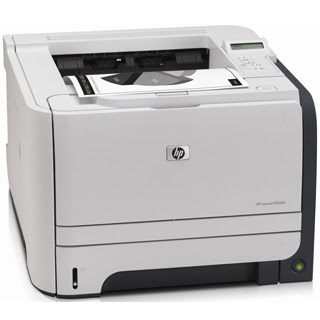
HP P2055 Gigabit Laser Printer
PROS:
The P2055 comes in two different models: The P2055d with duplexer and the P2055dn with duplexing and Gigabit Ethernet. The Gigabit card is available as an optional accessory and can be easily added to a P2055d with just a screwdriver.
Having half the weight of the P3005 series, the 22-pound, cube-like LaserJet also has a smaller 14½” x 14½” footprint for easy placement in any corner or credenza -- just leave enough ventilation space around the vents. Paper trays and toner are all easily accessed from the front, reducing the need of moving the printer for refilling.
The 2-line LCD display, LEDs and 5-button controls are relatively intuitive, taking up little space on the printer. On printers with the network option, these controls can be accessed through a web-based application.
A 250-sheet cassette tray can support paperweights from 16# to 36# paper, and sizes ranging from 5½” x 8½” up to 8½” x 14”. The P2055’s multi-purpose flip-tray holds up to 50 sheets of papers, cardstock, envelopes, and transparencies.
In less than 8 seconds, this laser starts printing two-sided letter-size prints at 35 ppm per side, a decent speed for laser printers in 2008. In monochrome using 1200 x 1200 dpi resolution, the P2055 keeps text sharp--even at 6-point font sizes--and does a decent job with printing graphics in B&W. With an instant-on fuser system, there are no more long restart times when the printer is in power save mode. Like all LaserJets, the P2055 comes with a toner save mode to conserve on ink.
The P2055 base unit starts out with 64MB of memory, which is sufficient for non-networking uses and can handle most jobs. To handle low-volume network demands, the P2055n comes with 128MB. All models can be expanded to a maximum of 320MB. For a typical computer classroom, I recommend installing a minimum of 128MB in a HP printer. HP has installed a full set for print emulators that should satisfy the most diverse office. Emulators include PostScript3, HP PCL5e and PCL6.
CONS:
The 250-sheet paper tray is woefully undersized for business use. For personal and home use, a 250-sheet tray is sufficient--so long as you’re not someone whose home is their office. It’s typical for even a small office to go through a ream of paper in a single day. A second 500-sheet add-on tray is available as an optional purchase that will hold an entire ream of paper and increase total paper capacity on the P2055 to 800 sheets.
This is a noisy printer. While idling below 30 dB, the printer produces 55 dB of sound printing. To give you an idea of what that means: 60 decibels is the level of typical conversations and 30 decibels is the sound of a quiet night in a desert. The noise while printing is barely discernable sitting in a classroom or office alcove, but you wouldn’t want to have it sitting next to your desk.
INK / TONER NEEDS:
The LaserJet P2055 toner and drum are integrated in a single cartridge, making it easy to maintain. It comes with a standard 2,300-sheet yield toner cartridge, but you can buy replacement toner with a higher yield of 6,500-sheets.
Jumat, 05 April 2013
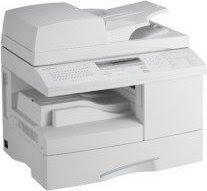
Samsung SCX 6320F 4 in 1 Multi function Laser Printer
PROS:
If you don’t want to turn on the computer every time you want to make a copy, a fax, or e-mail a scan, you don’t have to. The SCX-6320F has a full control panel with an on-screen menu for printer setup and operation without the need for software. A traditional QWERTY keyboard as well as a numeric keypad allows for text and number entries. Twenty programmable keys allow for 1-touch dialing for up to 40 fax numbers. An address book function allows for more frequently used fax numbers to be stored and retrieved, speed dialing of 200 numbers. To protect unwanted access, fax pages can be stored in the SCX-6320F’s 16MB memory; a 4-digit security password can be activated to allow authorized users to print the stored faxes. A pass-through external phone jack on the back of the printer allows for plugging a telephone or an answering machine.
The Duplex Automatic Document Feeder (DADF) allows copying or scanning of up to 50 2-sided originals.
This printer has some serious paper capacity. The SCX-6320F comes standard with a 550-sheet cassette tray, capable of holding over a ream of letter or legal-size paper. The flip-door on the side of the printer reveals a 100-sheet multi-purpose tray that can handle transparencies, labels, post cards, envelopes, and to 8½” x 14” legal paper of various bond weights.
The color scanner portion of the SCX-6320F is compatible with TWAIN and XP/Vista’s WIA standards. Copy options include changing image magnification from 0.5 to 2 times the original size, and up to 99 multi-page copying. Printing speeds are about 22 pages per second.
The SCX-6300F gives you a choice of using the USB 2.0 or Parallel interface to connect to a single workstation. Ethernet LAN is available as an option, or simply your computer’s operating system to make it a shared printer.
CONS:
There is no official mention of the amount of printer memory the Samsung SCX-6320F has. The only memory listed is 16MB for the fax function. If printer memory is shared with the RAM used for remembering and storing fax numbers, this may cause delays in printing as the fax starts to fill up the memory.
This 4-in-1 is one of Samsung’s noisier multi-function printers. In operation, the SCX-6320F produces 60dB of sound and 40db sitting idle. To give you an idea of that means, 60dB is the sound of normal conversations and 40db is the sound level of whispering. Having only USB or Parallel connections means whatever computer the SCX-6320F is cabled to, that user will have to get used to having a noisy office.
INK/TONER NEEDS:
The SCX-6320F has separate toner and drum to help reduce overall consumables costs. The standard 8,000-page starter toner and drum cartridges are included in the box. The drum unit will need to be replaced ever 20,000 pages—which is about the same time the DADF rubber pad will need replacing.
SOFTWARE:
The software in the CD-ROM is primarily for Windows compatible machines. For Windows users, the SmartThru4 software provides the most features, supporting not only scanning and printing, but offering an advanced printing section that allows for booklet printing, creating a large poster mosaics, and watermarks.
The Linux software package is not included with the CD and has to be downloaded from Samsung’s website to support printer and scanning functions. The Linux Unified Driver Configurator software allows for scanned images to manipulated and edited.
Langganan:
Postingan (Atom)