Printers are cheap but they are still expensive enough to make some repairs worthwhile. There is a surprising number of parts in them, and every part is a potential failure point. The most common failure is a clogged print head. They are notoriously difficult to clean because of their microscopic nozzles. The first attempt should be to use the self-cleaning command, found in the printer properties dialog. If that fails, the print head will need to be removed and wiped with alcohol. Both the contacts and nozzles should be cleaned well, and avoid touching them after cleaning. If all that fails, consider replacing the print head.
Inkjet Printer Repair
One benefit of the cheaper models is having the print head on the cartridge, so buying a new cartridge usually fixes the problem. For others, buying a new print head can be expensive, and its usually better to buy a new printer.
Another failure point is the power cord. Turn off the power first, then check the cord for any obvious cuts or sharp bends. A cord that is twisted enough times can break internally without showing any signs of damage. Use the continuity checker on a multimeter to check for internal breaks. A battery and light globe can also be used for this test. Also check the sockets for bent or broken pins.
Check the power supply unit for any sign of smoke or melted plastic. This indicates that it has overheated and potentially failed. Fixing a power supply unit is best left to professionals. However, the cost is not worth it, and just like the print head, its usually better to buy a new printer.
Inkjet printers have a small sponge that soaks up excess ink from the print head. Eventually, the sponge fills up with ink, and this causes smudging due to the buildup of excess ink. The sponge can be can be replaced with some cotton wool but its a messy and difficult job.
Paper jams are a sign of trouble with the rollers that pickup and feed the paper through the printer. Over time, the roller rubber becomes hard and smooth. This can cause the paper to slip and jam. Rubbing them gently with a cottonbud soaked in alcohol, or even with fine sandpaper, may help them grip better.
Squeaking is caused by a lack of lubrication in the roller bearings. This can be fixed with some mineral oil, but getting it into the right spot is difficult. If too much oil is applied, it will find its way onto the rollers and smear the paper.
Unless the problem is simple to fix, its usually better to buy a new inkjet printer. Only the more expensive models justify the high cost of servicing and parts.
Tampilkan postingan dengan label Printer. Tampilkan semua postingan
Tampilkan postingan dengan label Printer. Tampilkan semua postingan
Senin, 17 Februari 2014
Sabtu, 30 November 2013
RESETTER PRINTER TUTORIAL T20 Epson Stylus PHOTO
Before using the Software Resetter Epson Stylus T20, make sure:
a. Epson Stylus T20 Printer Driver is installed first, and make sure the printer is connect to the computer
b. Make sure you have the "Software Resetter Printer Epson Stylus T20"
c. Make sure that the damages requested in the printer reset counter (usually a red flame of the lamp on the printer all)
Here is a tutorial resetter Epson Stylus T20:
1. Set Adjustment Epson Stylus T20 software on your computer
2. If the software is compressed, the software used to extract his resetter Epson T20
3. Printer Switch
4. Open the folder resetter Epson Stylus T20 Adjprog.exe you and run the file.
5. Click Accept
6. Click Particular adjustment mode menu entry to reset the printer counter
7. Find and click on Waste ink pad counter menu, then click OK
8. Click Check to find out the counter value at the time of blinking, and Ok to continue
Click initialization to change / reset the printer counter becomes zero, so the printer to be normal again. Then click OK to continue
9. Click Finish to end the process of resetting the counter Epson Stylus T20
10. Click Previous to return to main menu
11. Click Quit to exit the program counter reset Epson Stylus T20
12. Reset waste ink counter Epson Stylus T20 is done, turn off the printer for a while, then restart the printer, and wait until the printer calibration is completed
b. Make sure you have the "Software Resetter Printer Epson Stylus T20"
c. Make sure that the damages requested in the printer reset counter (usually a red flame of the lamp on the printer all)
Here is a tutorial resetter Epson Stylus T20:
1. Set Adjustment Epson Stylus T20 software on your computer
2. If the software is compressed, the software used to extract his resetter Epson T20
3. Printer Switch
4. Open the folder resetter Epson Stylus T20 Adjprog.exe you and run the file.
5. Click Accept
6. Click Particular adjustment mode menu entry to reset the printer counter
7. Find and click on Waste ink pad counter menu, then click OK
8. Click Check to find out the counter value at the time of blinking, and Ok to continue
Click initialization to change / reset the printer counter becomes zero, so the printer to be normal again. Then click OK to continue
9. Click Finish to end the process of resetting the counter Epson Stylus T20
10. Click Previous to return to main menu
11. Click Quit to exit the program counter reset Epson Stylus T20
12. Reset waste ink counter Epson Stylus T20 is done, turn off the printer for a while, then restart the printer, and wait until the printer calibration is completed

Selasa, 19 November 2013
Download HP Officejet 6600 e All in One Printer H711a H711g Driver software tools and firmware

Get Printer Driver,
Product Installation Software,
Latest Firmware,
Utility
and Diagnostic Tools.
in the following links below.
Microsoft Windows 8 (32 bit)
Microsoft Windows 8 (64 bit)
Microsoft Windows 7 (32 bit)
Microsoft Windows 7 (64 bit)
Microsoft Windows server 2008 x64
Microsoft Windows server 2008 w32
Microsoft Windows Vista
Microsoft Windows Vista (64 bit)
Microsoft Windows XP
Mac OS X
http://h10025.www1.hp.com/ewfrf/wc/softwareCategory?product=5304873&lc=en&cc=us&dlc=en&lang=en&cc=us
Senin, 18 November 2013
How to Reset Photo Printer Canon PIXMA MP600
The printer Canon PIXMA MP600 is all-in-one canon printer like Canon MP500 but with improve features. This canon printer model provide 2.5 inch display and easy scroll wheel features that makes operation for this printer so much easier.This printer also provides features to printer directly from memory cards, digital cameras, Bluetooth devices, and camera phones. In the market this printer sold for $130.00
Other features for this all-in-one printer is easy to setup into your computer, provides wireless connection, easy to use, it’s quiet and it prints fast. On the internet I’ve found reset method for this Canon Pixma MP600 all-in-one printer, are reset counter and reset the printer to factory default setting.

Here the Manual Canon MP600 Printer (Reset Waste Ink Counter and Reset to Factory Setting).
1. Reset Counter MP600
Other features for this all-in-one printer is easy to setup into your computer, provides wireless connection, easy to use, it’s quiet and it prints fast. On the internet I’ve found reset method for this Canon Pixma MP600 all-in-one printer, are reset counter and reset the printer to factory default setting.

Here the Manual Canon MP600 Printer (Reset Waste Ink Counter and Reset to Factory Setting).
1. Reset Counter MP600
- Turn off the printer
- Press and hold the Resume Button, add a printer an indicator light green.
- Press and hold the Power Button, while hold Power button, release the Resume Button.
- While hold the Power Button, double click Resume button and then Release Both Buttons.
- Click Resume for Four times.
- Once you click Power, to confirm the selected action (reset counter absorber).
- Turn off the printers.
- Press the HsayaE button.
- Use the Easy-Scroll Wheel or the right/left arrow to select Settings, and then press OK button.
- Use the Easy-Scroll Wheel or the right/left arrow to select Device settings, then press the OK button.
- Use the Easy-Scroll Wheel (B) or the up/down arrow to select Reset settings, then press the OK button.
- Use the Easy-Scroll wheel or the up/down arrow to select Yes on the confirmation screen and then press OK.
- Press the HsayaE button to return to the HsayaE menu.
Minggu, 17 November 2013
Tips Using Software Resetter for Epson Printer Without Change Date Setting
At some software resetter or adjustment program for epson need date setting at computer to use the software without error. sometime change date setting in computer very disturb. in fact there are some ways to use software resetter or adjustment program for epson without changing date setting in computer and without error.
Here how :
A. Using bat file or Create bat file
Create one bat file and copy this code. You can use notepad to create it. Place the bat file at the same folder with the adjustment program.
@echo off
echo %date% > currdate.txt
date 11-07-07
rd C:adjust~1 /s/q
REG DELETE HKEY_LOCAL_MACHINESOFTWAREEPSONPTSG /f
start/wait AdjProg.exe
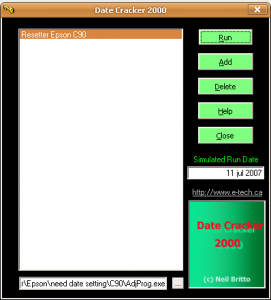
B. Using Date Cracker Software
 Note : All this methods has been tested.
Here how :
A. Using bat file or Create bat file
Create one bat file and copy this code. You can use notepad to create it. Place the bat file at the same folder with the adjustment program.
@echo off
echo %date% > currdate.txt
date 11-07-07
rd C:adjust~1 /s/q
REG DELETE HKEY_LOCAL_MACHINESOFTWAREEPSONPTSG /f
start/wait AdjProg.exe
B. Using Date Cracker Software
- Download and install Date Cracker and run the software.
- Click Add button, enter program description (example: Resetter Epson C90)
- Click add button the select the adjutment software then click open.
- Type date setting for the adjustment program in the simulated run date.
- Click run button to run the software.
 Note : All this methods has been tested.
Sabtu, 16 November 2013
How to Reset Canon MP287 Printer error E08

FIX PRINTER ERROR "The Ink Absorber is Almost Full" When the canon MP287 is turned on, it will display error E08 on the LCD panel of the printer.
And if give print command, the computer will display error "The Ink Absorber is Almost Full".
How to Reset MP287 Canon error E08
Step1. Turn on Printer Canon MP287, LCD panel then will appear E08 error, and error "The Ink Absorber is Almost Full" will display on computer.
Step
2. Download the Resetter of canon MP287 NOW.
Step
3. Get printer in SERVICE MODE.
Step
4. Turn off the Canon MP287 by pressing the power button. Do not unplug the power cord.
Step
5. Press and Hold the STOP / RESET and POWER button.
Step
6. Remove the STOP / RESET but do not release the button POWER.
Step
7. press the STOP / RESET 6 times.
Step
8. Then release both buttons simultaneously. The Canon MP287 will be in Service Mode.
Step
9. LCD Panel MP287 will blank / dark and your computer will detect the new hardware. Ignore it ...
Step1
0. The next step Extract and Run Service Tool for canon MP287.
Step
11. menu -> absorber Clear ink counter select -> SET to the right.And Do the other steps on the tool.
Step
12. Printer Canon MP287 will be normal again.
Senin, 11 November 2013
Free Download Brother Series printer Service Manual

Brother 1660e 2.4 Mb
Brother 525CJ 3.1 Mb
Brother 530CJ 3.1 Mb
Brother 540CJ 3.1 Mb
Brother 550CJ 3.1 Mb
Brother 810ic(bl) 3.1 Mb
Brother 840ic 3.1 Mb
Brother AX450 1.6 Mb
Brother CB200 2.2 Mb
Brother CP1800 2.2 Mb
Brother CP2000 2.2 Mb
Brother Fax 100 1.4 Mb
Brother Fax 1010 6.0 Mb
Brother Fax 1020 6.0 Mb
Brother Fax 1030 6.0 Mb
Brother Fax 1170 6.0 Mb
Brother Fax 1270 6.0 Mb
Brother Fax 1570mc 6.0 Mb
Brother Fax 1870mc 6.0 Mb
Brother Fax 1970mc 6.0 Mb
Brother Fax 255 3.3 Mb
Brother Fax 2600 5.4 Mb
Brother Fax 275 3.3 Mb
Brother Fax 2750 4.0 Mb
Brother Fax 2800 7.5 Mb
Brother Fax 2900 7.5 Mb
Brother Fax 355 3.3 Mb
Brother Fax 3550 3.4 Mb
Brother Fax 3650 3.4 Mb
Brother Fax 375 3.3 Mb
Brother Fax 3750 7.9 Mb
Brother Fax 3800 7.5 Mb
Brother Fax 4100 13.1 Mb
Brother Fax 4550 Plus 3.4 Mb
Brother Fax 4600 5.4 Mb
Brother Fax 4650 4.0 Mb
Brother Fax 4750e 13.1 Mb
Brother Fax 515 3.3 Mb
Brother Fax 525 3.3 Mb
Brother Fax 560 3.8 Mb
Brother Fax 570 1.4 Mb
Brother Fax 5750e 13.1 Mb
Brother Fax 575m 1.4 Mb
Brother Fax 580mc 3.8 Mb
Brother Fax 590dt 1.4 Mb
Brother Fax 590mc 1.4 Mb
Brother Fax 615 1.4 Mb
Brother Fax 625 1.4 Mb
Brother Fax 635 1.4 Mb
Brother Fax 6550mc 3.4 Mb
Brother Fax 6650mc 4.0 Mb
Brother Fax 675 1.4 Mb
Brother Fax 715m 1.4 Mb
Brother Fax 725m 1.4 Mb
Brother Fax 750 3.9 Mb
Brother Fax 7550mc 3.4 Mb
Brother Fax 7650mc 3.4 Mb
Brother Fax 770 3.9 Mb
Brother Fax 8000p 3.4 Mb
Brother Fax 8060p 5.4 Mb
Brother Fax 8070p 7.5 Mb
Brother Fax 8070p 7.5 Mb
Brother Fax 8200p 3.4 Mb
Brother Fax 8250p 4.0 Mb
Brother Fax 825mc 1.4 Mb
Brother Fax 8360p 13.1 Mb
Brother Fax 8650p 7.9 Mb
Brother Fax 870mc 3.9 Mb
Brother Fax 875mc 1.4 Mb
Brother Fax 9000 3.4 Mb
Brother Fax 9050 4.0 Mb
Brother Fax 9060 5.4 Mb
Brother Fax 9070 7.5 Mb
Brother Fax 910 3.9 Mb
Brother Fax 920 3.9 Mb
Brother Fax 921 3.9 Mb
Brother Fax 930 3.9 Mb
Brother Fax 931 3.9 Mb
Brother Fax 9500 3.4 Mb
Brother Fax 9550 4.0 Mb
Brother Fax Home Fax 3 3.3 Mb
Brother Fax MFC-1770 6.0 Mb
Brother Fax MFC-4300 5.4 Mb
Brother Fax MFC-4350 4.0 Mb
Brother Fax MFC-4450 3.4 Mb
Brother Fax MFC-4800 7.5 Mb
Brother Fax MFC-660mc 3.8 Mb
Brother Fax MFC-7750 7.9 Mb
Brother Fax MFC-8500 13.1 Mb
Brother Fax MFC-925 3.9 Mb
Brother Fax T72 3.8 Mb
Brother Fax T74 3.8 Mb
Brother Fax T76 3.8 Mb
Brother GX8000 1.6 Mb
Brother HL-1020 2.7 Mb
Brother HL-1030 5.9 Mb
Brother HL-1040 2.7 Mb
Brother HL-1050 2.7 Mb
Brother HL-1060 2.1 Mb
Brother HL-1070 2.5 Mb
Brother HL-1230 4.5 Mb
Brother HL-1240 5.9 Mb
Brother HL-1250 5.9 Mb
Brother HL-1260e 4.8 Mb
Brother HL-1270n 5.9 Mb
Brother HL-1440 4.5 Mb
Brother HL-1450 4.5 Mb
Brother HL-1470n 4.5 Mb
Brother HL-1650 11.2 Mb
Brother HL-1660 4.8 Mb
Brother HL-1670n 11.2 Mb
Brother HL-1850 6.9 Mb
Brother HL-1870n 6.9 Mb
Brother HL-2060 6.1 Mb
Brother HL-2400c 8.3 Mb
Brother HL-2400c Model lt24cl 336.9 Kb
Brother HL-2400ce 8.3 Mb
Brother HL-2460(n) 8.4 Mb
Brother HL-2600cn 7.8 Mb
Brother HL-3450cn 8.3 Mb
Brother HL-4000cn 5.7 Mb
Brother HL-4040cn 14.8 Mb
Brother HL-4050cdn 14.8 Mb
Brother HL-4070cdw 14.8 Mb
Brother HL-5030 6.4 Mb
Brother HL-5040 6.4 Mb
Brother HL-5050 6.4 Mb
Brother HL-5070n 6.4 Mb
Brother HL-5240 11.6 Mb
Brother HL-5250DN 11.6 Mb
Brother HL-5270DN 11.6 Mb
Brother HL-5280DW 11.6 Mb
Brother HL-600 3.2 Mb
Brother HL-660 1.7 Mb
Brother HL-7050(n) 13.6 Mb
Brother HL-7050(n) 13.6 Mb
Brother HL-720 2.8 Mb
Brother HL-730 2.8 Mb
Brother HL-730Plus 2.8 Mb
Brother HL-820 2.7 Mb
Brother HL-P2000 2.2 Mb
Brother LW-800ic 3.1 Mb
Brother LX 1200 8.8 Mb
Brother LX 200 3.3 Mb
Brother LX 300 8.8 Mb
Brother LX 900 3.3 Mb
Brother LX 910d 3.3 Mb
Brother MFC-5100c 11.5 Mb
Brother MFC-5200c 26.2 Mb
Brother MFC-590 11.5 Mb
Brother MFC-6800 9.4 Mb
Brother MFC-890 26.2 Mb
Brother MFC-9160 9.4 Mb
Brother MFC-9180 9.4 Mb
Brother MFC-9700 13.2 Mb
Brother MFC-9760 13.2 Mb
Brother MFC-9800 13.2 Mb
Brother MFC-9860 13.2 Mb
Brother MFC-9880 13.2 Mb
Brother MFC-dCP1000 9.4 Mb
Brother MFC-dCP1400 13.2 Mb
Brother MFC-P2000 2.2 Mb
Brother PT 65 1.1 Mb
Brother PT bb4 3.0 Mb
Brother PT mini tech 2.0 Mb
Brother PT-1100 1.7 Mb
Brother PT-1130 1.7 Mb
Brother PT-1160 1.7 Mb
Brother PT-1170 1.7 Mb
Brother PT-1180 1.7 Mb
Brother PT-11q 1.7 Mb
Brother PT-1250 1.7 Mb
Brother PT-1850 2.8 Mb
Brother PT-1900 2.8 Mb
Brother PT-1910 2.8 Mb
Brother PT-210e 470.9 Kb
Brother PT-2300 2.4 Mb
Brother PT-2310 2.4 Mb
Brother PT-2420pc 1.3 Mb
Brother PT-2450 2.4 Mb
Brother PT-2500pc 1.9 Mb
Brother PT-3600 3.8 Mb
Brother PT-530 1.8 Mb
Brother PT-55 1.5 Mb
Brother PT-550 1.8 Mb
Brother PT-9200dx 2.0 Mb
Brother PT-9200pc 5.2 Mb
Brother PT-9600 3.8 Mb
Brother SC-2000 5.9 Mb
Langganan:
Postingan (Atom)