Tampilkan postingan dengan label CANON. Tampilkan semua postingan

Minggu, 01 Desember 2013

How to reset the ink cartridge Canon PG 37 black

How to reset the ink cartridge Canon PG-37 blackIf the black cartridge refills PG-37 where are you going to put on the printer you put a sign saying that the cartridge is empty or is not correct cartridge.

Esto no es por que no tenga tinta (ojo que tambien puede estar vacio) es que la impresora pixma no tienen un sensor para saber la cantidad de tinta que tiene, lo que hace es reconocer el cartucho que se te termino y avisarte que esta vacio al contar determinada cantidad de impresiones.

This is not because you do not have ink (note that also can be empty) is that the printer pixma not have a sensor to determine the amount of ink you have, what it does is recognize the cartridge that is over and warn you that this vacuum to have certain amount of impressions.

Para solucionar esto lo que hay que hacer es: To fix this you have to do is:

Cuando intentes imprimir y te sale el cartel de que no tiene tinta apreta durante 20 segundo el boton (depende el modelo de impresora cual boton, pude ser el de las hojas o uno que tiene dibujado un triangulo al reves) When you try to print and sign out the ink has not click the button for 20 seconds (depending on the printer model that button, I could be the leaves or one that has drawn a triangle upside down)

Cuando lo sueltes se borrara el nivel de tinta y podras imprimir tranquilamente. Be erased when you release the ink and you can print smoothly. Lo que de ahora en adelante no te va a decir nunca mas que cantidad de tinta tiene. What henceforth not going to say anymore that has ink. PERO PUEDES IMPRIMIR ! BUT YOU CAN PRINT!

Rabu, 27 November 2013

Reset Ink Level on Canon Pixma iP1800 Canon Pixma iP1880 using iPtool software

I get this tutorial from fixyourownprinter.com forum to solve the ink level error in canon Pixma iP1800/Canon Pixma iP1880.  This problem usually appear after refilled the cartridge on the canon printer and ink level indicator showing the ink cartridge is empty although you have filled a cc Ink into the cartridge. And if the problem occur you cannot using your printer to print. The solution you must reset ink level on the printer if you want your computer work again.
If you have a problem like that you ca follow this tutorial to solve your printer  problem, here how:
  1. Turn of the printer and Disconnect the power cable to the printer.
  2. Press power button on the printer. While pressing the button connect the power cable to the power source (the power indicator will light in green)
  3. While still holding power button press resume button twice – orange blink and return to green.
  4. Release the power button, then the PC will recognize new cartridge installed (If the power indicator on the printer steady in green you continue to Steps 5)
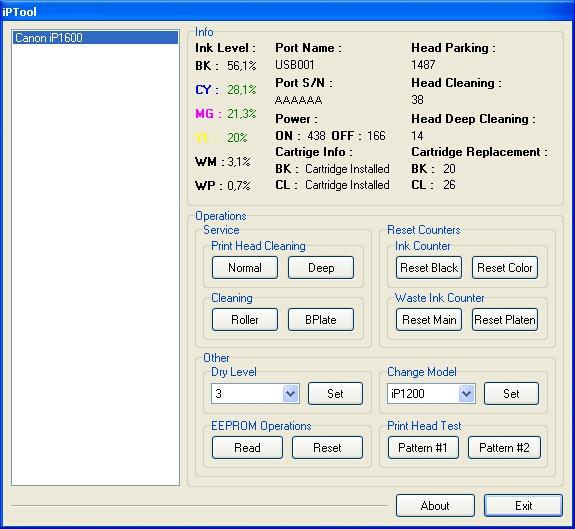
  5. Run the IPtools software, please await after this software detect your printer correctly or you can set the printer model on “Change Model” section.
    IPTool for Canon Printer
  6. Click “reset black and reset color” button to reset the ink level and Click “reset main and reset platen” to reset waste ink counter. After clicked the button you will see ink level of the cartridge on in the IPTol info has 100% and WP and WM has  set to 0. Click Exit on IPTool
  7. Turn off the printer and turn on again.
On the reset procedure above usually the problem found on steps 1-4 to make the printer steady light in green. On my experiment if steps 1-4 does not work  on your printer, you can use manual reset method for canon iP1700 before continue to steps 5.

Sabtu, 23 November 2013

Download Canon PIXMA MX432 Office All in One Inkjet Printers Driver software tools and firmware


Download Canon PIXMA MX432 Office All-in-One Inkjet Printers Driver, software, tools, and firmware.

Get Printer Driver,
Product Installation Software,
Latest Firmware,

Utility
and Diagnostic Tools.
in the following links below.

Microsoft Windows 8 (32 bit)
Microsoft Windows 8 (64 bit)
Microsoft Windows 7 (32 bit)
Microsoft Windows 7 (64 bit)
Microsoft Windows server 2008 x64
Microsoft Windows server 2008 w32
Microsoft Windows Vista
Microsoft Windows Vista (64 bit)
Microsoft Windows XP
Mac OS X
Linux os

http://www.usa.canon.com/cusa/support/consumer/printers_multifunction/pixma_mx_series/pixma_mx432#DriversAndSoftware

Jumat, 22 November 2013

How to Print Test Page Pattern Canon Epson and HP Printers without CPU or Computer

Here how to test page pattern for some Canon, Epson and HP printer without Computer or CPU. Prepare paper on printer before test the printers.
A. Test page pattern for Epson Printer
For C series: C41, C42, C43, C45, C58, C61, C62, C63, C65, C67, C79, C85, C86, C87, etc.
For R series: R210, R230, R270, etc.
  • Push and hold paper/resume button and then push power button.
For CX Series like CX3500, CX3600, CX3700, CX 5100, CX4900, CX5900, etc
  • Push and hold power button, and then push ink button until indicator lamp blink once, and then release both of them.
B. Test page pattern for HP Printer
3600 series and 3700 series
  • Turn on printer, Wait until power indicator lamp stop blinking, then push and hold power button and then open and close again cover panel 3 or 4 times repeatedly.
HP37XX, HP39XX , D23XX , D24XX
  • Turn on printer , wait until power indicator lamp stop blinking then press power switch while opening the cover 5 times repeatedly then release switch button
Three in one Models
  • Switch on printer then press “cancel” and “color” at the same time
C. Test page pattern for Canon Printer
BJC 1000, BJC 2000, BJC 2100 SP, S100, S200
  • Push twice on resume button
IP 1200, IP 1300, IP 1600, IP 1700, IP 2200
  • Push 5 times on resume button
Source: http://www.duraklin.com

Kamis, 21 November 2013

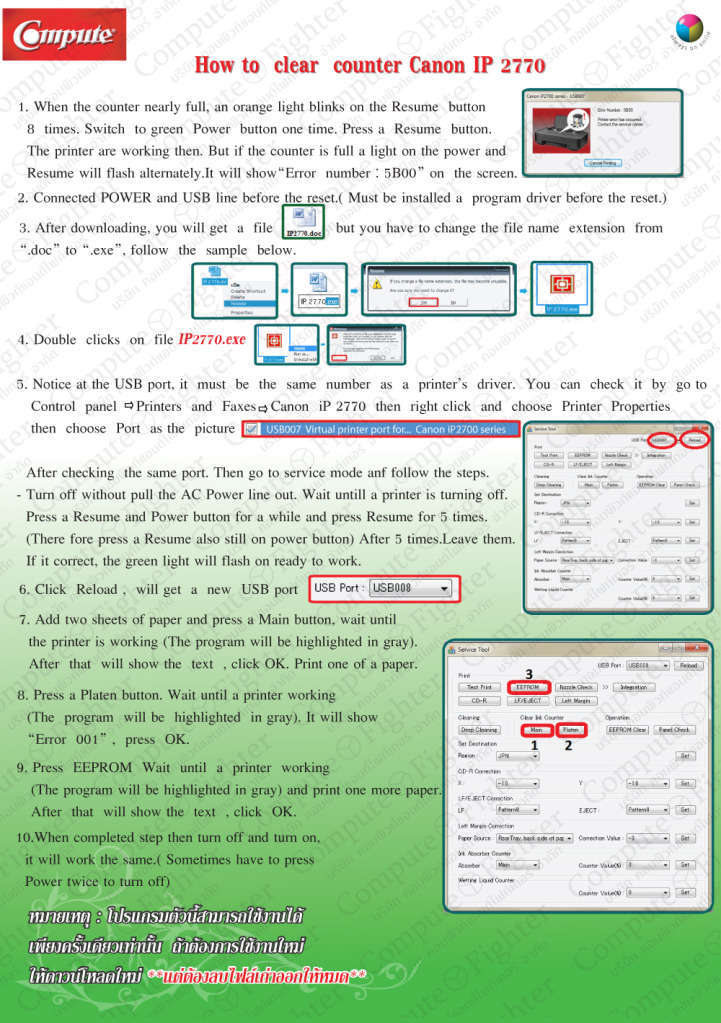
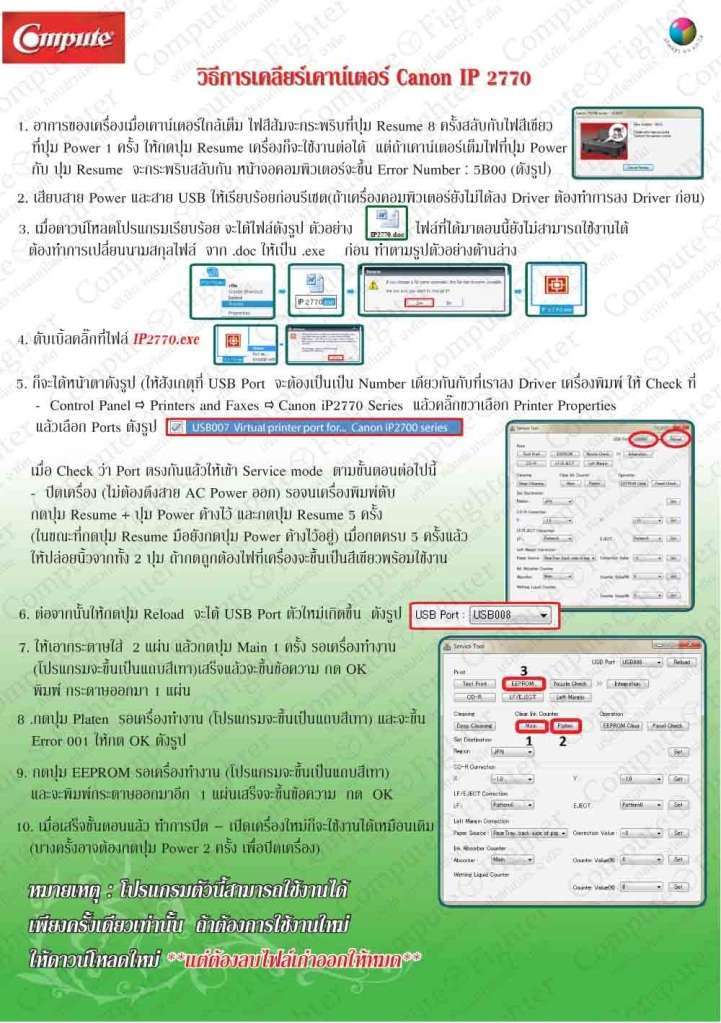
Reset Counter Canon ip2770

I found tutorial “How to Reset Counter Canon ip2770“ on Thailand printer forum.  This tutorial to answer all question all about software resetter Canon iP2770 and I hope this tutorial info can help all this blog visitors who need tutorial reset Canon iP2770.
Canon iP2770 is newest all-in-one canon printer that designed for Home and small office user can print with maximal resolution up to 4800×1200 dpi. This canon printer using cartridge type PG-810, CL-811 (PG-810XL, CL811XL Optional) and using Hi-Speed USB 2.0 interface to connected to computer.
Canon Pixma iP 2770 support for Windows 2000 (SP4 only), Win XP, Vista and Windows 7 and also support for MAC OS: Macintosh OS X 10.4.11 – 10.6.
Here the tutorial reset for Canon ip2770 (Click the picture below to view the tutorial – the tutorial are is English and Thai language)
Tutorial Reset Canon iP2770 in English Language
Note: All Download link and tutorial is taken from Thailand printer forum (http://www.compute.co.th). Use this info and tutorial as your own risk. Here the download link software resetter for Canon iP2770: Canon iP2770 Resetter.

Rabu, 20 November 2013

How To fix Canon printers Error P22


Canon printers Error P22 or P,2,2 is a scanner error.


Procedure 1:
Power off the printer
unplung the power cord
Wait 5 minutes
Plug in the power cord
Switch on the printer


Procedure 2:
If the printer is still under warranty, contact the Canon support.

Procedure 3:
The scanner unit or the logic board is defective.

Senin, 18 November 2013

How to Reset Photo Printer Canon PIXMA MP600

The printer Canon PIXMA MP600 is all-in-one  canon printer like Canon MP500 but with improve features. This canon printer model provide 2.5 inch display and easy scroll wheel features that makes operation for this printer so much easier.This printer also provides features to printer directly from memory cards, digital cameras, Bluetooth devices, and camera phones. In the market this printer sold for $130.00
Other features for this all-in-one printer is easy to setup into your computer, provides wireless connection, easy to use, it’s quiet and it prints fast. On the internet I’ve found reset method for this Canon Pixma MP600 all-in-one printer, are reset counter and reset the printer to factory default setting.
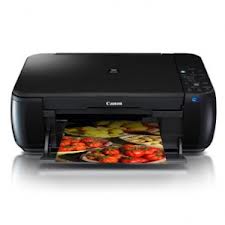
Canon PIXMA MP600 All-in-One Photo Printer
Here the Manual Canon MP600 Printer (Reset Waste Ink Counter and Reset to Factory Setting).
1. Reset Counter MP600
  • Turn off the printer
  • Press and hold the Resume Button, add a printer an indicator light green.
  • Press and hold the Power Button, while hold Power button, release the Resume Button.
  • While hold the Power Button, double click Resume button and then Release Both Buttons.
  • Click Resume for Four times.
  • Once you click Power, to confirm the selected action (reset counter absorber).
  • Turn off the printers.
2. Reset Canon MP600 to the Factory Setting
  • Press the HsayaE button.
  • Use the Easy-Scroll Wheel or the right/left arrow to select Settings, and then press OK button.
  • Use the Easy-Scroll Wheel or the right/left arrow to select Device settings, then press the OK button.
  • Use the Easy-Scroll Wheel (B) or the up/down arrow to select Reset settings, then press the OK button.
  • Use the Easy-Scroll wheel or the up/down arrow to select Yes on the confirmation screen and then press OK.
  • Press the HsayaE button to return to the HsayaE menu.
Download link software resetter for Epson and canon printer: download Canon and Epson resetter

Sabtu, 16 November 2013

How to Reset Canon MP287 Printer error E08


FIX PRINTER ERROR "The Ink Absorber is Almost Full" When the canon MP287 is turned on, it will display error E08 on the LCD panel of the printer. 

And if give print command, the computer will display error "The Ink Absorber is Almost Full". 


How to Reset MP287 Canon error E08

     Step1. Turn on Printer Canon MP287, LCD panel then will appear E08 error, and error "The Ink Absorber is Almost Full" will display on computer.
     
     Step
2. Download the Resetter of canon MP287 NOW.


     Step
3. Get printer in SERVICE MODE.
     
     Step
4. Turn off the Canon MP287 by pressing the power button. Do not unplug the power cord.
     
     Step
5. Press and Hold the STOP / RESET and POWER button.
     
     Step
6. Remove the STOP / RESET but do not release the button POWER.
     
     Step
7. press the STOP / RESET 6 times.
    
     Step
8. Then release both buttons simultaneously. The Canon MP287 will be in Service Mode.
    
     Step
9. LCD Panel MP287 will blank / dark and your computer will detect the new hardware. Ignore it ...
    
     Step1
0. The next step Extract and Run Service Tool for canon MP287.
    
     Step
11. menu -> absorber Clear ink counter select -> SET to the right.And Do the other steps on the tool.
     
     Step
12. Printer Canon MP287 will be normal again.


Jumat, 15 November 2013

Ink Level Reset Instructions for Canon PG 40 PG 50 CL 41 and CL 51 cartridges

Ink Level Reset Instructions for Canon PG-40, PG-50, CL-41 and CL-51 cartridges
# Cover only the top row of contact pads that you see with tape.
# Put the cartridge in the printer, and it will give you a message "Cartridge Not Inserted".
# Remove the cartridge from the printer.
# Now cover only the top two rows of contact pads with tape.
# Put the cartridge in the printer, and it will again give you a message "Cartridge Not Inserted".
# Remove the cartridge from the printer again.
# Carefully, remove the tape that you had covering the top two rows of contact pads on the electronic strip.
# Place the cartridge back into the machine. The machine should now show that cartridge with a full status.

Senin, 14 Oktober 2013

Canon PIXMA iP4300 User Guide Owners

Manual contains the information you need when installing, setup,
setting, configuring, maintenance and troubleshooting, operating
instructions the Canon PIXMA iP4300 printer. Table content Before
Printing Turning the Printer On and Off Loading Printing Paper Basic
Printing Printing with Windows Printing with Macintosh Printing
Photographs Directly from a Compliant Device Printing from a PictBridge
Compliant Device Routine Maintenance Replacing an Ink Tank Keeping the
Best Printing Results

When Printing Becomes Faint or Colors Are
Incorrect Printing the Nozzle Check Pattern Examining the Nozzle Check
Pattern rint Head Cleaning Print Head Deep Cleaning Aligning the Print
Head Cleaning Your Printer Troubleshooting Cannot Install the Printer
Driver Cannot Connect to Computer Properly Print Results Not
Satisfactory Printer Does Not Start Paper Does Not Feed Properly Paper
Jams ALARM Lamp Flashes Orange Error Message Appears on the Screen
Cannot Print Properly from a Digital Camera Appendix Reading the
On-screen Manuals Specifications. Download Canon PIXMA iP4300 User
Manual here

Senin, 30 September 2013

Solve Error 5200 Canon iP2770


Canon iP2770 printer is an economical printer and Canons latest output from the vendor. Like his brothers before, Canon iP2770 printer is also not immune from error problems lately started to emerge and much discussed, especially in cyberspace.


One problem is the iP2770 printer error 5200 on the exit time will start the print process. And if the calculated amount of 8x blinkingnya orange 1x green. How do I fix this?

Indications iP2770 error 5200:

At the iP2770 printer is turned on, this printer will initialize berkedipnya marked with green LED lights up green led is full. It looks normal printer iP2770 with this green LED turn on. But at the time of the test print or print the document, the printer suddenly stops and error 5200 appears on the screen we are. And the printer will have a blinking green orange 1x 8x.

Cause iP2770 error 5200:

This printer cartridge for black type PG810 and CL811 cartridges for color. Apparently the second cartridge has a pressure sensor temperature. And if the pressure sensor detects the temperature of one cartridge turns out there is a problem, then the iP2770 printer will display an error message 5200. on the screen. And in fact that is often problematic is the color cartridge CL811.


How to Solve Error 5200 Canon iP2770:

First way:

This method is the easiest way, but spend a lot of money that is by replacing the iP2770 the color cartridge error 5200, then the problem was resolved.

Second way:

IP2770 printer is turned off with an electric cord attached.
Press the RESUME button and hold 2 seconds, then press the POWER button until the green LED flame.
Then release the Resume button, but do not release the button POWER.
POWER button while still depressed, press the Resume button 5 times. Led will flash alternately orange glow green with orange last.
IMPORTANT: not to mistakenly press RESUME 4 times only, because the printer will die completely, but it is temporary. If this happens, disconnect the USB cable and power cord. Let stand for 2-4 hours, then try your printer.

Release both buttons simultaneously.
Green LED will flash briefly and then going full flame.
And the computer will detect new hardware, ignore it.
Press the POWER button, then the printer will die.
Press the POWER button again it will flame and iP2770 printers that had the error 5200 is ready for use again.
Oya iP2770 how to resolve error 5200 that we described, is temporary until power is removed. So if the power disconnected then the iP2770 will be error 5200 again. And how to overcome that is repeat the above steps.

Good luck!

Selasa, 24 September 2013

Canon Copier ImageClass MF5550

Buying a Canon Copier ImageClass MF5550 has helped me achieve a higher level of efficiency at work. Before that we had a separate scanner, printer and fax machine. The Canon Copier Imageclass MF5550 laser multifunction machine allows me and my staff at the office to do all our printing, scanning, copying and faxes on one piece of equipment. The system is smaller than you think and does not cover too much space.

The machine comes with an automatic fifty sheet document feeder. There is a storage capacity of 250 sheets in the paper tray which suits me fairly well, and is generally sufficient for small businesses or enthusiastic home users. The manufacturer promises a printing and copying speed of nineteen pages per minute, however I think practically it is a little less than that. Personally, I think this is not very fast, but I prefer the machine due to many of its other advantages.

I get good quality prints at a resolution of 600 x 600 dpi. The machine has a single cartridge system as it’s a monochrome machine, which keeps things simple, and cheap. This all in one machine is compatible with all the common operating systems and there are no problems that I have faced with the installation or drivers. The machine comes with a one year limited warranty so it does not hurt to give it a try.

The Canon Copier ImageClass MF5550 gives me a good resolution and image quality in scanning too. The scanner has an optical resolution of 1200 x 2400 dpi and an interpolated resolution quality of 9600 x 9600 dpi. The OCR software that comes with the machine allows for editing the scanned text documents. The machine gives high quality scanning options and I am pretty satisfied with what I get.

The built-in fax machine has saved me the money and space required for separate equipment for faxing too. The modem speed is 33.6 kbps with a transmission reception memory of 99 pages. There are a number of different options available for photocopying as well and I am able to produce copies of all sizes on the Canon Copier.

For people who want to save money and get good quality with their documents at the same time, I recommend the Canon Copier ImageClass MF5550 as a useful machine.

Rabu, 18 September 2013

Canon PC920

The Canon PC920 is the predecessor to the PC940. It is a personal desktop copier that measures 17.5 inches by 12 by 20 inches wide. At 42 pounds it is a hefty machine, which hopefully means the build quality reflects what we have come to expect from Canon over the past few years.

While not the most aesthetically pleasing device in the world, it’s difficult to fault the solid construction and no-nonsense design. It’s functional and intended to fit in with other office devices. The PC920 was released before Canon came up with their RAPID toner technology so it isn’t as quick to react as the PC940, but is still a competent performer nonetheless.

Even though the device is fairly small, it can cope with letter or legal sized paper with ease. There is a 250 sheet paper cassette that slots into the front and works effortlessly. Along with the single sheet use on the platen, brings the capacity up to 251 sheets. The glass and copier engine can also cope with books and other 3D objects, and will give a surprisingly good copy even though the lid might be open.

The PC940 had an instant warm-up facility, while the 920 doesn’t have that, warm up is only 10 seconds. A further 10 seconds will have the first completed copy ready for you. That’s pretty impressive for a copier, even a smaller desktop one.

Print quality is excellent. Every single copy came out perfectly when we tested. Our test document is 24 pages long and designed to put office equipment of all descriptions through its paces. The PC920 didn’t let us down. Each and every copy had the same contrast, brightness and toner density. Graphs, images and even photographs were rendered accurately and came out at a steady rate of 10 pages per minute.

For users who work from home, run a small business or simply do a bit of copying, the Canon PC920 is an excellent little machine. It’s low duty cycle, and small footprint means it’s ideal for its target market. With toner cartridges that last for 4000 sheets and cost less than $40, it doesn’t cost the earth to own. It performs well enough for most needs, even copying photos proficiently. The PC920 is a good little copier and well worth a look if you’re in the market for one.

Senin, 05 Agustus 2013

Canon Error 5100 How to fix

There is really nothing quite as annoying as asking your expensive Canon MP printing device to print an important document and seeing an error code 5100 pop up instead of the neatly printed paperwork you need. Understanding the reason for the error code and what steps you should take to resolve the issue can have you back on track with your newly printed page-fast. 
Error message: the LED light blinks twice (2xs) and displays: "Error 5100 An error occurred in the carriage encoder signal".

Lets march down the troubleshooting path and look at probable solutions and how to reset Canon error code 5100. The first thing that you should do with a printer error of any type is try to reset the Canon MP printer. Occasionally an error code is a matter of a crossed signal between the Canon ink jet printer and the computer. Rebooting the Canon pixma printer might fix the problem with no more fuss.

1) Clear debris from carriage head
Open the Canon printer and look closely for any debris such as small pieces of paper or dirt lodged inside. If such debris is found, remove it, plug Canon pixma back in and see if error code has cleared. 

2) Lubricate the purge cap
If the Canon printer has excess dirt or dust you can use a damp lint free paper towel to gently clean the Canon printer. Once device is cleaned plug it back in and see if error code 5100 has cleared. If cleaning and clearing the device does not work then you may need to lubricate the purge cap.The purge cap is the sliding mechanism that the printer head parks into when it is not in use. To lubricate it you will need to remove the right panel from the devise. Once the panel is removed rub a little white grease along the sliders while taking care not to get any grease on the small wipers or the black caps. Once this is done, replace the panel, plug devise back in and see if the error code 5100 has cleared.

3) Paper Jammed
Odds are greatest a rogue piece of paper has nested itself in like a rat in a haystack. The solution is to remove all ink cartridges and hit it with canned air, or any other filtered air blower.

4) Set the ink cartridges properly
Less likely, and yet still possible is your ink cartridges need to be re-seated. If you follow the step above, after cleaning youll be re-seated the cartridges anyway.
5) Clean the Timing film
The timing film is a thin piece of plastic which runs across the width of the devise below the drive belt. It has fine vertical lines running along it and if it becomes dirty then your printer will display an error 5100 message. To clean use a damp lint free paper towel and gently wipe it off. Once strip has been cleaned, plug the devise back in and see if the error message has cleared.
Corrupt printer driver results in Canon Error Code 5100
If you have gone through all this and still you have no joy, chase down the latest, greatest print driver and reinstall. Printer driver corruption while low on the odds list, can be quite vexing.

How to reset Canon Error Code 5100
  • Turn off the printer
  • Unplug the printer power cable
  • Press and hold the power button, and restore the power (a strip with a switch makes this simpler*). Depending on your firmware, you may have to also press and hold the resume button, simultaneously. You may get a one buzz sound.
  • While continuing to press the power button press the resume button twice, in short bursts.
  • Release the power button.
  • Again, depending on the firmware, you may have to press the resume button three more times, and then the power button once. If you got a single buzz before, you should get one again, indicating you have exited programming the firmware. The printer will then switch off.
Plan B to reset Canon Error 5100
There is a plan B however, it is at your own risk. Some clever Russian engineers have coded up Canon printer Resetters that can be downloaded. The software can create test patterns, cleaning, EEPROM dumps. Clearing waste counters and much more. And in these days of malware, I think more than twice about downloading free software from sources I dont completely trust.
If all of the above steps do not clear your printer of the error 5100 error then it is possible the logic board assembly or carriage motor has gone bad. If this is the case then you will need to either send the unit in for repairs or replace the machine.

Jumat, 12 Juli 2013

Canon Copier ImageClass MF4690

The Canon Copier ImageClass MF4690 is another multifunction device from the office equipment giant. It is a full duplex monochrome printer, copier, scanner and fax all in one little package and offers great value for money. It’s perfect for a small or home office and performed well in every test we threw at it.

The MF4690 has every that make it suitable for a small office or workgroup including networking. It prints, copies, scans, and faxes, and you can even scan to e-mail or to a file server if you like. The automatic document feeder enables you to scan or copy documents with multiple pages. It also has a built-in duplexer for double-sided printing.

Printing is the MF4690s real strength. It can produce good quality prints up to 21 pages per minute. The print quality is sharp, with text showing as crisp, with clean edges and good fill. Images are clear, with the shading evenly spread without bleeding. The test document includes all the main fonts in different sizes, and all appeared well defined and clear, even down to 3 point.

The paper drawer holds up to 250 sheet of paper and feels solid. There is also a 35 sheet automatic document feeder. The overall build quality seems robust, which is a good sign.

The scanner and fax are both pretty standard. There are options to fax from the desktop, scan to PC over USB, but not over the network which is a little disappointing. You can also scan to a USB key, which is a nice touch but not wholly useful. It would have been nicer to be able to scan over the network.

Setting up is simple, with the basic configuration done through drivers. The MF4690 can work either standalone or as part of a network, through the built in network port. A quick driver install later and you’ll be up and running in no time at all. There is a built in web page based configuration tool where you can add and modify system settings which is simple and straightforward.

Overall the MF4690 is a good device, but not perfect. It has a mix of great attributes like good quality printing and copying, a fully featured fax and scanner but misses out on features like scan over network and other neat features that other devices offer.

Minggu, 23 Juni 2013

Canon ImageCLASS D880

This three-in-one printer, fax and copier is ideal for business use, especially small offices or workgroups. It has been especially built to offer high quality printing and copying with a good print speed.

As this Canon Image CLASS D880 contains a single cartridge system, it does not require any maintenance or particular machine skills to have it installed and working. Its set up is simple and one can begin with few easy steps. Only the cartridges need to be inserted before getting started.

This machine has the Canon advanced printing technology that makes it produce decent quality of work. It’s compatible with USB and also carries an Energy Star rating.

The sheet capacity is high which makes it perfect for office use. It offers 500 sheets in a cassette plus 100 sheets in a multipurpose tray. It has an automatic document feeder which can at the same time automatically deal with 30 pages. Its fax speed is up to 33.6 along with its super G3 modem. It also has a decently high speed with its copier and printer and thus it can copy up to 18 copies a minute and print at 16 pages per minute. The printer has a great output quality at a standard 2400 x 600 dpi.

Most of the fax features are especially designed to provide ease of use. In that respect a few main benefits include the 12 speed dials, 100 coded dials, memory back up of 255 pages and printing in the required order as well as others. We don’t fax much anymore, but when we do Canon make sure it’s as easy as can be.

The laser print engine offers black and white, as well as color prints. Its digital copier has the advanced feature to reduce and enlarge to 50%, 64%, 78%, 129% and 200%. This copier also zooms from 50% to 200% from 1% increments. Its copy features include toner saver mode and memory collate, for the ease of its users.

In standby mode, this machine is quite silent, however when in use it produces a slight noise which is not very audible. When it warms up, its noise increases for a while but is soon back to its quiet self.

Overall this unit is a great addition to any office or small business.

Rabu, 27 Maret 2013

Canon Pixma MP610 Manual User Guide

Canon Pixma MP610 Manual User Guide - This Canon PIXMA MP610 user guide owners manual instruction manual tells how to set up and begin using your printer. Canon PIXMA MP610 manual also provides detailed information on configuring basic operations and care, using optional devices and maintenance troubleshooting configuration setup default factory reset. Read these instructions carefully. Keep this document for future reference. Follow all warnings and instructions marked on the product.
Canon PIXMA MP610 Manual User Guide here

Senin, 19 November 2012

Canon MP495 – Clearing Error Messages

You can clear some of the error messages that appear on a Canon MP495 just by using the red “stop / reset” button on the printer.  This is especially effective for the messages you receive when at least one of the ink cartridges are empty.If the printer displays that an ink cartridge is empty, simply press and hold the red “stop / reset” button on the printer for six seconds.  The printer should continue printing, and use any of the remaining ink in the cartridge.If the printer thinks that both cartridges are empty, you will receive a second error message, and you will need to hold the button for another six seconds.If the circuitry on the cartridges is actually damaged, unfortunately, this process will not work.

Canon MP230 – Error Messages

If there is a problem with the MP230, a message light will flash to warn you.  Count the number of times it flashes to understand what the actual error is:
Two flashes: Machine is out of paper / paper does not feed
Three flashes: Paper jam
Four flashes: The cartridge is not installed properly
Five flashes: The cartridge is not installed properly / appropriate cartridge is not installed
Seven flashes: cartridge is not installed in the correct position
Eight flashes: Ink absorber is almost full.
Thirteen flashes: The remaining ink level cannot be detected
Fourteen flashes: The cartridge cannot be recognised
Fifteen flashes: The cartridge cannot be recognised
Sixteen flashes: The ink has run out

Canon MP230 – Clearing Error Messages

Many of the error messages that appear on a Canon MP230 printer can be cleared by using the red “stop / reset” button.  This is especially true for the messages you receive when at least one of the ink cartridges are empty.If the printer displays that an ink cartridge is empty, simply press and hold the red “stop / reset” button on the printer for five seconds.  The printer should continue printing, and use any of the remaining ink in the cartridge.
If the printer thinks that both cartridges are empty, you will receive a second error message, and you will need to hold the button for another five seconds. If the copper circuitry on the cartridges are actually damaged, unfortunately, this process will not work.