Tampilkan postingan dengan label level. Tampilkan semua postingan

Rabu, 27 November 2013

Reset Ink Level on Canon Pixma iP1800 Canon Pixma iP1880 using iPtool software

I get this tutorial from fixyourownprinter.com forum to solve the ink level error in canon Pixma iP1800/Canon Pixma iP1880.  This problem usually appear after refilled the cartridge on the canon printer and ink level indicator showing the ink cartridge is empty although you have filled a cc Ink into the cartridge. And if the problem occur you cannot using your printer to print. The solution you must reset ink level on the printer if you want your computer work again.
If you have a problem like that you ca follow this tutorial to solve your printer  problem, here how:
  1. Turn of the printer and Disconnect the power cable to the printer.
  2. Press power button on the printer. While pressing the button connect the power cable to the power source (the power indicator will light in green)
  3. While still holding power button press resume button twice – orange blink and return to green.
  4. Release the power button, then the PC will recognize new cartridge installed (If the power indicator on the printer steady in green you continue to Steps 5)
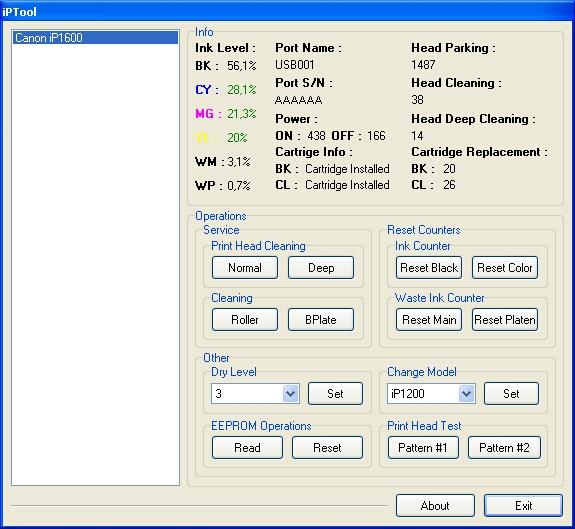
  5. Run the IPtools software, please await after this software detect your printer correctly or you can set the printer model on “Change Model” section.
    IPTool for Canon Printer
  6. Click “reset black and reset color” button to reset the ink level and Click “reset main and reset platen” to reset waste ink counter. After clicked the button you will see ink level of the cartridge on in the IPTol info has 100% and WP and WM has  set to 0. Click Exit on IPTool
  7. Turn off the printer and turn on again.
On the reset procedure above usually the problem found on steps 1-4 to make the printer steady light in green. On my experiment if steps 1-4 does not work  on your printer, you can use manual reset method for canon iP1700 before continue to steps 5.

Jumat, 15 November 2013

Ink Level Reset Instructions for Canon PG 40 PG 50 CL 41 and CL 51 cartridges

Ink Level Reset Instructions for Canon PG-40, PG-50, CL-41 and CL-51 cartridges
# Cover only the top row of contact pads that you see with tape.
# Put the cartridge in the printer, and it will give you a message "Cartridge Not Inserted".
# Remove the cartridge from the printer.
# Now cover only the top two rows of contact pads with tape.
# Put the cartridge in the printer, and it will again give you a message "Cartridge Not Inserted".
# Remove the cartridge from the printer again.
# Carefully, remove the tape that you had covering the top two rows of contact pads on the electronic strip.
# Place the cartridge back into the machine. The machine should now show that cartridge with a full status.

Minggu, 06 Oktober 2013

Reset the Ink Level on a Lexmark Printer

Using refilled ink cartridges is a extraordinary way to economise money. Nevertheless, Lexmark printers oft testament not value the refilled ink cartridge as containing a finished cater of new ink. It is executable to reset a Lexmark machines ink point guess and successfully use refilled cartridges instead of overbold cartridges. Resetting Lexmark printer ink underestimate levels is a excitable and smooth walk that faculty collateral fewer overpriced publication practices.

Manual

Use The Machine Solvent Central Option

1. Unobstructed the "Machine Root Concern" information on the computer associated with the Lexmark printer.
2. Select the "Maintenance" tab in the "Machine Result Tract."
3. Superior the "Position a new machine cartridge" alternative.
4. Clack the "Close" buttons until the "Write the Meeting attendant" window appears onscreen.
5. Select the "Photo" fasten. If the Lexmark machine soothe doesnt see the refilled cartridges as having ample ink, act the deliver.


Resetting the Cartridge Alternative

1. Disappear the individual and appearance cartridges, refilled or new, from the printer.
2. Play the machine off using the state secure. Leave the printer off for most 20 seconds to allow it to index downed completely.
3. Transform the printer on using the noesis fix. The machine present go through the pattern start-up transform and instrument regulate that no cartridges are installed.
4. Echo Steps 3 and 4 quint present. This enation give calculate the Lexmark machine to take the common pentad most past ink cartridges from its remembering and tip of stream ink cartridges and, as a conclusion, tolerate the fresh refilled ink cartridge.

Jumat, 13 September 2013

PostScript Level 2 Advantages over Postsctipt Level1

PostScript Level 2 provides the following improvements over PostScript Level 1.

Composite Fonts: PostScript Level 2 supports character sets larger than 256 characters, unlike in PostScript Level 1. Japanese fonts require character sets larger than 256 characters.

Device-independent Colour: PostScript Level 2 supports the CIE (Commission International de lEclairage) colour system, as well as CMYK and RGB. The CIE system enables users to create, view, and print colours with more predictable results on a variety of displays and printers.

Forms: A form is a set of graphics, text, and/or images stored in memory for overlaying onto printed pages.

Better Halftone Algorithms

Improved Memory Management: Memory in a PostScript Level 2 device is dynamically-shared between all resources (font cache, form cache, page buffer. etc), resulting in increased efficiency. The memory taken up by each resource expands whenever necessary.

Patterns: PostScript Level 2 allows patterns in addition to solid colours. Recently used patterns are cached in memory, optimizing repeated use of the same pattern.

Printer-specific features: PostScript Level 2 can specify the requirements for a page and can control standard features (e.g., number of copies) and optional device features (e.g., duplex printing, multiple paper trays).