Tampilkan postingan dengan label pixma. Tampilkan semua postingan

Rabu, 27 November 2013

Reset Ink Level on Canon Pixma iP1800 Canon Pixma iP1880 using iPtool software

I get this tutorial from fixyourownprinter.com forum to solve the ink level error in canon Pixma iP1800/Canon Pixma iP1880.  This problem usually appear after refilled the cartridge on the canon printer and ink level indicator showing the ink cartridge is empty although you have filled a cc Ink into the cartridge. And if the problem occur you cannot using your printer to print. The solution you must reset ink level on the printer if you want your computer work again.
If you have a problem like that you ca follow this tutorial to solve your printer  problem, here how:
  1. Turn of the printer and Disconnect the power cable to the printer.
  2. Press power button on the printer. While pressing the button connect the power cable to the power source (the power indicator will light in green)
  3. While still holding power button press resume button twice – orange blink and return to green.
  4. Release the power button, then the PC will recognize new cartridge installed (If the power indicator on the printer steady in green you continue to Steps 5)
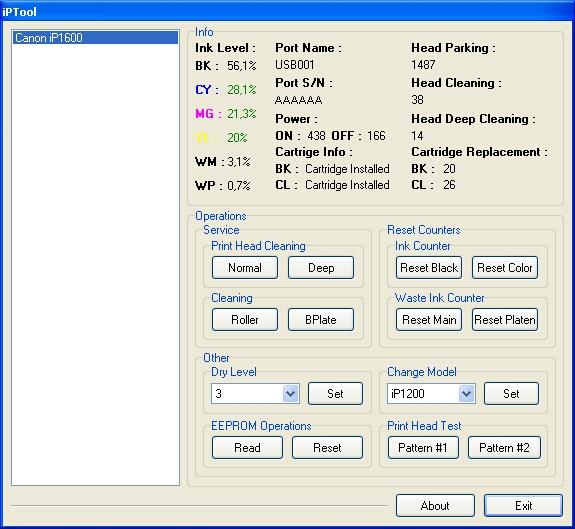
  5. Run the IPtools software, please await after this software detect your printer correctly or you can set the printer model on “Change Model” section.
    IPTool for Canon Printer
  6. Click “reset black and reset color” button to reset the ink level and Click “reset main and reset platen” to reset waste ink counter. After clicked the button you will see ink level of the cartridge on in the IPTol info has 100% and WP and WM has  set to 0. Click Exit on IPTool
  7. Turn off the printer and turn on again.
On the reset procedure above usually the problem found on steps 1-4 to make the printer steady light in green. On my experiment if steps 1-4 does not work  on your printer, you can use manual reset method for canon iP1700 before continue to steps 5.

Sabtu, 23 November 2013

Download Canon PIXMA MX432 Office All in One Inkjet Printers Driver software tools and firmware


Download Canon PIXMA MX432 Office All-in-One Inkjet Printers Driver, software, tools, and firmware.

Get Printer Driver,
Product Installation Software,
Latest Firmware,

Utility
and Diagnostic Tools.
in the following links below.

Microsoft Windows 8 (32 bit)
Microsoft Windows 8 (64 bit)
Microsoft Windows 7 (32 bit)
Microsoft Windows 7 (64 bit)
Microsoft Windows server 2008 x64
Microsoft Windows server 2008 w32
Microsoft Windows Vista
Microsoft Windows Vista (64 bit)
Microsoft Windows XP
Mac OS X
Linux os

http://www.usa.canon.com/cusa/support/consumer/printers_multifunction/pixma_mx_series/pixma_mx432#DriversAndSoftware

Senin, 18 November 2013

How to Reset Photo Printer Canon PIXMA MP600

The printer Canon PIXMA MP600 is all-in-one  canon printer like Canon MP500 but with improve features. This canon printer model provide 2.5 inch display and easy scroll wheel features that makes operation for this printer so much easier.This printer also provides features to printer directly from memory cards, digital cameras, Bluetooth devices, and camera phones. In the market this printer sold for $130.00
Other features for this all-in-one printer is easy to setup into your computer, provides wireless connection, easy to use, it’s quiet and it prints fast. On the internet I’ve found reset method for this Canon Pixma MP600 all-in-one printer, are reset counter and reset the printer to factory default setting.
Canon PIXMA MP600 All-in-One Photo Printer
Here the Manual Canon MP600 Printer (Reset Waste Ink Counter and Reset to Factory Setting).
1. Reset Counter MP600
  • Turn off the printer
  • Press and hold the Resume Button, add a printer an indicator light green.
  • Press and hold the Power Button, while hold Power button, release the Resume Button.
  • While hold the Power Button, double click Resume button and then Release Both Buttons.
  • Click Resume for Four times.
  • Once you click Power, to confirm the selected action (reset counter absorber).
  • Turn off the printers.
2. Reset Canon MP600 to the Factory Setting
  • Press the HsayaE button.
  • Use the Easy-Scroll Wheel or the right/left arrow to select Settings, and then press OK button.
  • Use the Easy-Scroll Wheel or the right/left arrow to select Device settings, then press the OK button.
  • Use the Easy-Scroll Wheel (B) or the up/down arrow to select Reset settings, then press the OK button.
  • Use the Easy-Scroll wheel or the up/down arrow to select Yes on the confirmation screen and then press OK.
  • Press the HsayaE button to return to the HsayaE menu.
Download link software resetter for Epson and canon printer: download Canon and Epson resetter

Rabu, 27 Maret 2013

Canon Pixma MP610 Manual User Guide

Canon Pixma MP610 Manual User Guide - This Canon PIXMA MP610 user guide owners manual instruction manual tells how to set up and begin using your printer. Canon PIXMA MP610 manual also provides detailed information on configuring basic operations and care, using optional devices and maintenance troubleshooting configuration setup default factory reset. Read these instructions carefully. Keep this document for future reference. Follow all warnings and instructions marked on the product.
Canon PIXMA MP610 Manual User Guide here