Selasa, 26 November 2013

Senin, 25 November 2013
Error E 91 or E91 on Epson printers

Error code E-91 means the waste ink counter is full. It had to be resetted in order to fix the problem.
For some Epson printers, the software SSC Utility can reset the counter.
Epson Artisan series Artisan 700, Artisan 725, Artisan 800, Artisan 835, Artisan 837, EP-901A
Epson B and BX series B1100, B1110, B300, B300DN, B310, B310N, B40W, B42WD, B500DN, B510, B510DN, B510N, B518DN, BX300F, BX305FW, BX310FN, BX525WD, BX600FW, BX610FW, BX620FWD, BX625FWD
Epson Stylus C series C20, C40, C41, C42, C43, C44, C45, C46, C58, C59, C63, C64, C67, C68, C70, C76, C77, C78, C79, C80, C82, C83, C86, C87, C88, C90, C92, C93, C94, C95, C97, C98, C99, C110, C120, C480, C560, C660, C670, C680, C777, C880, C888
Epson Stylus CX series CX1390, CX1500 ,CX1600, CX2800, CX2900, CX3100, CX3200, CX3300, CX3400, CX3500, CX3600, CX3650, CX3700, CX3800, CX3805, CX3810, CX3900, CX4000, CX4100, CX4200, CX4500, CX4600, CX4700, CX4800, CX4850, CX4900, CX5100, CX5400, CX5500, CX5505, CX5700, CX5900, CX6300, CX6400, CX6500, CX6600, CX6900, CX6900F, CX7300, CX7400, CX7450, CX8300, CX8400, CX8450, CX9300F, CX9400F, CX9500F
Epson Stylus D series D68, D82, D88, D92, D120
Epson Stylus DX series DX3800, DX3850, DX4000, DX4050, DX4200, DX4250, DX4400, DX4450, DX4800, DX4850, DX5000, DX5050, DX6000, DX6050, DX7300, DX7400, DX7450, DX8400, DX8450
Epson Stylus EP series EP-801A, EP-803A, EP-901A, EP903A
Epson Stylus K and L series K100, K200, K300, L100, L200, L300 Epson ME Office Series ME2, ME20, ME30, ME32, ME-B40W, ME70, ME80W, ME82WD, ME200, ME300, ME320, ME340, ME360, ME510, ME520, ME530, ME535, ME560, ME570, ME600F, ME620F, ME650N, ME650N, ME900WD, ME960FWD, ME1100
Epson NX Series (See TX Series) NX100, NX110, NX111, NX125, NX127, NX200, NX205, NX210, NX215, NX220, NX300, NX305, NX310, NX315, NX400, NX405, NX410, NX415, NX420, NX430, NX510, NX515, NX620
Epson PictureMate (PM) Series PM100, PM210, PM215, PM225, PM235, PM240, PM250, PM260, PM270, PM280, PM290, PM310, PM500, PM-A820, PM-A890, PM930C, PM-A950, PM-A970, PM970C, PM-G800, PM-G820, PM-D800, PM-3500C, PM,G4500, PM-G5000
Epson PX series PX600W, PX600FW, PX640, PX650, PX659, PX660, PX700W, PX700W, PX720WD, PX800FW, PX800FWD
Epson R series R200, R210, R220, R230, R240, R245, R250, R260, R265, R270, R275, R280, R285, R290, R295, R300, R310, R340, R350, R360, R365, R380, R390, R395, R520, R800, R1380, R1390, R1400, R1800, R1900, R2400, R2800, R3880, R4880, R7880
Epson RX series RX420, RX425, RX430, RX500, RX510, RX520, RX530, RX560, RX565, RX580, RX585, RX590, RX595, RX600, RX610, RX615, RX620, RX625, RX630, RX640, RX650, RX680, RX685, RX690, RX700 297
Epson S series S20, S21, S22
Epson Stylus Photo series: P50, P60, 870, 890, 1270, 1290, 1390, 1400, 1410, 1420, 2000P, 2100, R7880
Epson Stylus Pro Stylus Pro 7000, Stylus Pro 9000, Stylus Pro 9600
Epson Stylus SX series SX100, SX105, SX106, SX110, SX111, SX115, SX117, SX125, SX130, SX200, SX205, SX210, SX215, SX218, SX230, SX235, SX400, SX405, SX410, SX415, SX420W, SX425W, SX430W, SX435W, SX510W, SX515W, SX525WD, SX550W, SX600FW, SX610FW SX620FW
Epson T Series T10, T11, T13, T20, T20E, T21, T22, T23, T24, T25, T26, T27, T30, T31, T33, T40W, T42W, T42WD, T50, T59, T60, T80W, T1100, T1110
Epson TX series TX100, TX101, TX102, TX103, TX105, TX106, TX109, TX110, TX111, TX115, TX116, TX117, TX119, TX120, TX121, TX125, TX135, TX200, TX205, TX209, TX210, TX219, TX220, TX230, TX235, TX300F, TX320F, TX400, TX405, TX408, TX409, TX410, TX415, TX419, TX420, TX420W, TX510FN, TX550W, TX560WD, TX600F, TX600FW, TX600W, TX610FW, TX620FWD, TX640, TX650, TX659, TX660, TX700W, TX700FW, TX720WD, TX800W, TX800FW, TX820FWD
Epson WorkForce series 30, 40, 42, 60, 310, 315, 323, 500, 600, 610, 615, 620, 625, 630, 635, 1100, WF-7011, WF-7015, WF-7511 WF-7515, Pro-WP-4511, Pro-WP-4521, Pro-WP-4530, Pro-WP-4540
Epson: L100, L200, P50, P60, T50, T60, Pro 7000, Pro 9000, Pro 9600

Minggu, 24 November 2013
How to reset the protection counter of Epson Stylus TX410 and TX415 Resetter
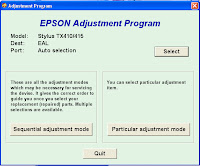
Epson Stylus TX410 and TX415 Adjustment Program
FIX PRINTER ERROR "parts inside printer end service life, waste ink pad counter overflow error"
FIX PRINTER ERROR "parts inside printer end service life, waste ink pad counter overflow error"
Please follow the steps below to reset the protection counter effectively.
- Double click AdjProg.exe.
- Click “Accept” button.
- Click "Select" button. and choose your printer model then click "OK"
- Click “Particular adjustment mode” button.
- Select on “Waste ink pad counter” and click “OK” button.
- Click on “Initialization” button and the program will reset the protection counter.
- Turn off the printer as a program instructed then turn on again.
- Click “Finish” button. and its done!
Sabtu, 23 November 2013
Download Canon PIXMA MX432 Office All in One Inkjet Printers Driver software tools and firmware

Get Printer Driver,
Product Installation Software,
Latest Firmware,
Utility
and Diagnostic Tools.
in the following links below.
Microsoft Windows 8 (32 bit)
Microsoft Windows 8 (64 bit)
Microsoft Windows 7 (32 bit)
Microsoft Windows 7 (64 bit)
Microsoft Windows server 2008 x64
Microsoft Windows server 2008 w32
Microsoft Windows Vista
Microsoft Windows Vista (64 bit)
Microsoft Windows XP
Mac OS X
Linux os
http://www.usa.canon.com/cusa/support/consumer/printers_multifunction/pixma_mx_series/pixma_mx432#DriversAndSoftware
Jumat, 22 November 2013
How to Print Test Page Pattern Canon Epson and HP Printers without CPU or Computer
Here how to test page pattern for some Canon, Epson and HP printer without Computer or CPU. Prepare paper on printer before test the printers.
A. Test page pattern for Epson Printer
For C series: C41, C42, C43, C45, C58, C61, C62, C63, C65, C67, C79, C85, C86, C87, etc.
For R series: R210, R230, R270, etc.
3600 series and 3700 series
BJC 1000, BJC 2000, BJC 2100 SP, S100, S200
A. Test page pattern for Epson Printer
For C series: C41, C42, C43, C45, C58, C61, C62, C63, C65, C67, C79, C85, C86, C87, etc.
For R series: R210, R230, R270, etc.
- Push and hold paper/resume button and then push power button.
- Push and hold power button, and then push ink button until indicator lamp blink once, and then release both of them.
3600 series and 3700 series
- Turn on printer, Wait until power indicator lamp stop blinking, then push and hold power button and then open and close again cover panel 3 or 4 times repeatedly.
- Turn on printer , wait until power indicator lamp stop blinking then press power switch while opening the cover 5 times repeatedly then release switch button
- Switch on printer then press “cancel” and “color” at the same time
BJC 1000, BJC 2000, BJC 2100 SP, S100, S200
- Push twice on resume button
- Push 5 times on resume button
Kamis, 21 November 2013
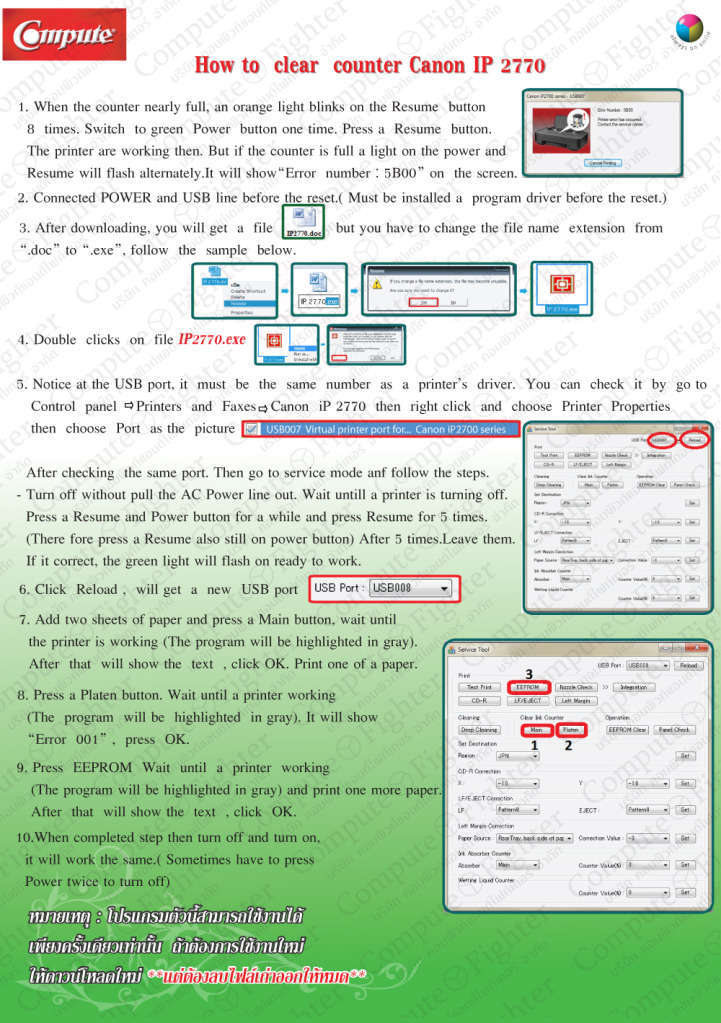
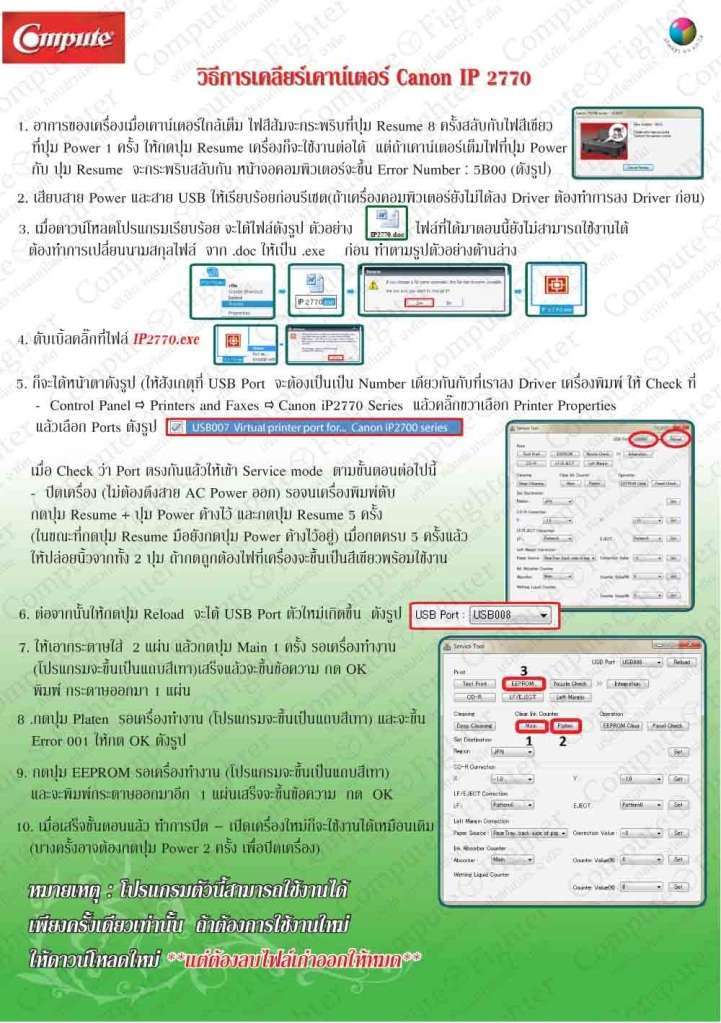
Reset Counter Canon ip2770
I found tutorial “How to Reset Counter Canon ip2770“ on Thailand printer forum. This tutorial to answer all question all about software resetter Canon iP2770 and I hope this tutorial info can help all this blog visitors who need tutorial reset Canon iP2770.
Canon iP2770 is newest all-in-one canon printer that designed for Home and small office user can print with maximal resolution up to 4800×1200 dpi. This canon printer using cartridge type PG-810, CL-811 (PG-810XL, CL811XL Optional) and using Hi-Speed USB 2.0 interface to connected to computer.
Canon Pixma iP 2770 support for Windows 2000 (SP4 only), Win XP, Vista and Windows 7 and also support for MAC OS: Macintosh OS X 10.4.11 – 10.6.
Here the tutorial reset for Canon ip2770 (Click the picture below to view the tutorial – the tutorial are is English and Thai language)

 Note: All Download link and tutorial is taken from Thailand printer forum (http://www.compute.co.th). Use this info and tutorial as your own risk. Here the download link software resetter for Canon iP2770: Canon iP2770 Resetter.
Canon iP2770 is newest all-in-one canon printer that designed for Home and small office user can print with maximal resolution up to 4800×1200 dpi. This canon printer using cartridge type PG-810, CL-811 (PG-810XL, CL811XL Optional) and using Hi-Speed USB 2.0 interface to connected to computer.
Canon Pixma iP 2770 support for Windows 2000 (SP4 only), Win XP, Vista and Windows 7 and also support for MAC OS: Macintosh OS X 10.4.11 – 10.6.
Here the tutorial reset for Canon ip2770 (Click the picture below to view the tutorial – the tutorial are is English and Thai language)
Rabu, 20 November 2013
How To fix Canon printers Error P22
Canon printers Error P22 or P,2,2 is a scanner error.
Procedure 1:
Power off the printer
unplung the power cord
Wait 5 minutes
Plug in the power cord
Switch on the printer
Procedure 2:
If the printer is still under warranty, contact the Canon support.
Procedure 3:
The scanner unit or the logic board is defective.
Langganan:
Postingan (Atom)